
➢ Tip! If you believe that a Federal Agency has discriminated against you, and wish to file a formal complaint, you must file it with the agency’s EEO office.
To submit an inquiry online perform the following steps: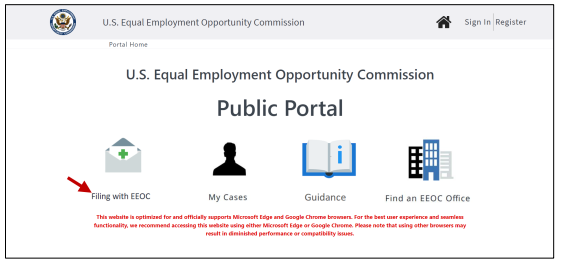
➢ Tip! The recommended browsers to use are Microsoft Edge and Google Chrome. Using other browsers may result in diminished performance or compatibility issues.
➢ Tip! Turn off Pop-Up blockers in your browser.
➢ Tip! Do not use the browser buttons to navigate the application. Use the Back and Next buttons.
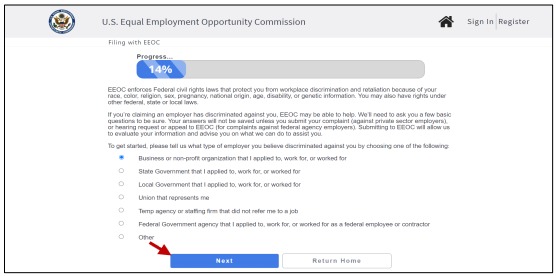 Step 3. An informational page displays. When you are ready, select Next to continue.
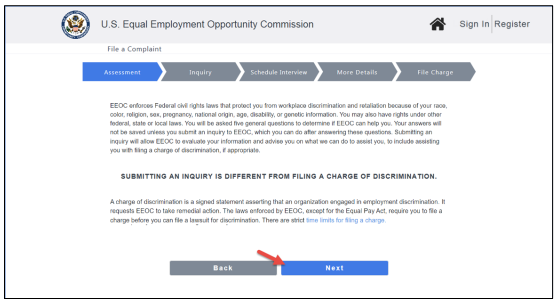 Step 4. A page displays with links to a video in English or Spanish that explains the basics of filing a charge with the EEOC. Select the Play button (
 ) to view the video to learn more before getting started. There are also links provided at the bottom of the page to help you learn more about the EEOC and its processes.
Select the Next button when you are ready to start.
Step 5. You will now be asked four general questions about the nature of your complaint, to determine if the EEOC can help you. Your answers will be saved only if you submit an inquiry. Select the Next button after answering each question.
The assessment may end early if it detects an answer indicating the EEOC may not be able to help you. In that event, a reason will display as to why the assessment ended and a list of additional resources will be provided that you can contact.
Timeliness. Enter the date you believe the discrimination occurred1.
Reason. Select the Reason why you believe you were discriminated against. Check all reasons that apply to your complaint.
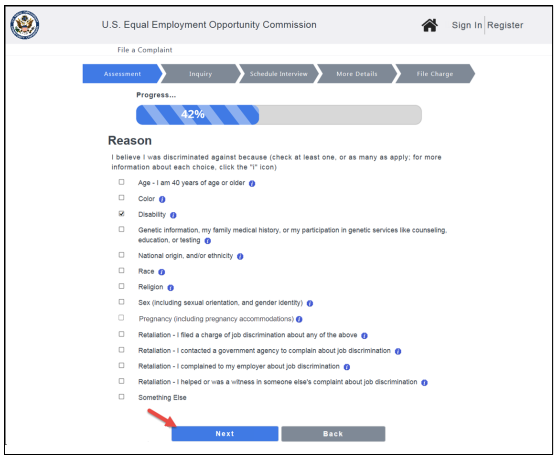
➢ Tip! Select an “I” icon ( ) to learn more about an available reason.
Number of Employees. Depending on your previous answers, you may be asked to select the approximate number of employees who work for the employer that you believe discriminated against you. Select from the available choices.
Location. Choose the state where you believe the discrimination occurred from the list provided.
Step 6. After you complete the questions, review your answers on the summary page that appears. To change any answer, select the Edit icon next to that answer (
 ). If you are satisfied with your answers, select the Next button to continue.
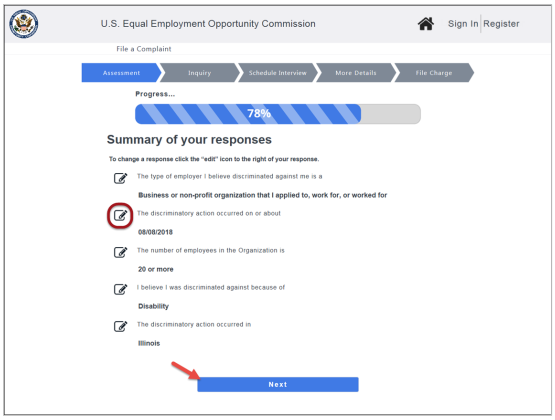 Step 7. The next page will let you know if you may continue the online inquiry process. Anti-discrimination laws give you a limited amount of time to file a charge of discrimination (typically 180 or 300 days from the date the discrimination occurred, depending on the law and state in which the discrimination occurred), and your answers help to determine if you have enough time left to file. If your time to file has not run out, you will be able to select the Next button to continue.2
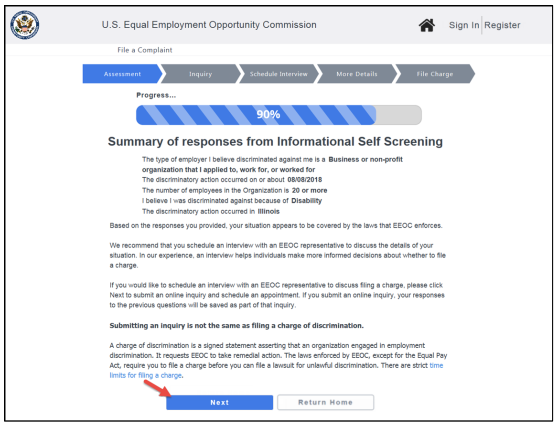 Step 8. To submit an online inquiry, you must set up a user account. A login page displays to enable you to login/register to submit an online inquiry. If you have not used the EEOC Public Portal before, Select the Register link (refer to EEOC Public Portal User’s Guide Vol 1 – Getting Started for details on creating a user account).
➢ Tip! If you already registered with the EEOC, enter your user ID and password in the fields provided.
Step 9. Once you are logged in, a status page displays that shows which parts of the inquiry process you have completed. Select the Continue button to proceed to part 2 – Online Inquiry.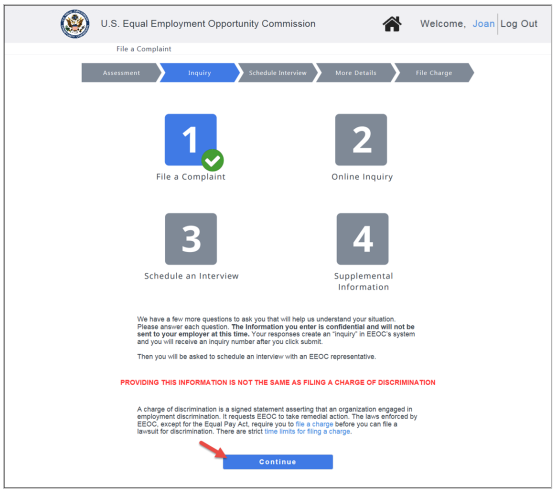 Step 10. Your personal information is displayed, which will be submitted with the online inquiry. This screen is view-only. Select the Next button to proceed.
➢ Tip! If you need to modify this information, select the link at the top of the page to go to your User Account Information. When you have finished and submitted your changes, you will be returned to inquiry submission process.
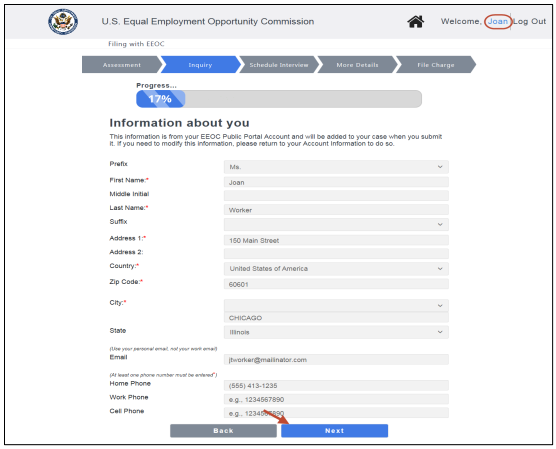 Step 11. After confirming the information about yourself, you will be asked to provide additional details about your situation to complete the inquiry. Select the Next button after answering each question.
➢ Tip! You must provide information wherever a red asterisk is displayed (*) to continue.
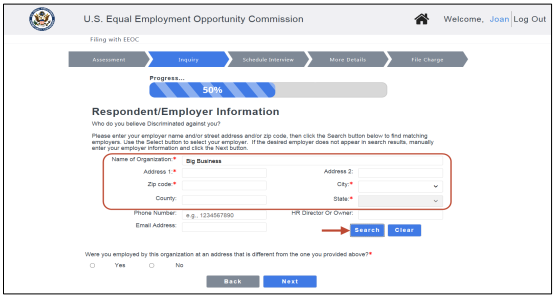
Adverse Action. Briefly describe the action taken against you that you believe is discriminatory.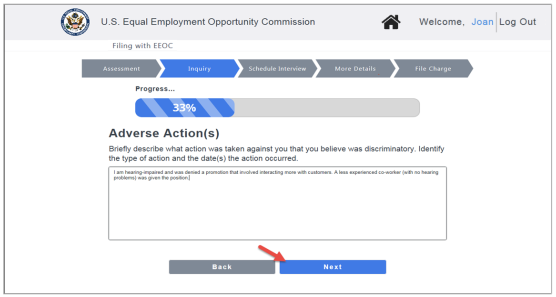 Respondent/Employer Information. Provide the contact information for the employer you believe discriminated against you (the “respondent”).
First, search the Employer Master List for your employer. You may enter the name and/or street address and/or zip code of your employer. When you have entered the search criteria, select the Search button.
➢ Tip! Entering a zip code will automatically populate the city and state fields.
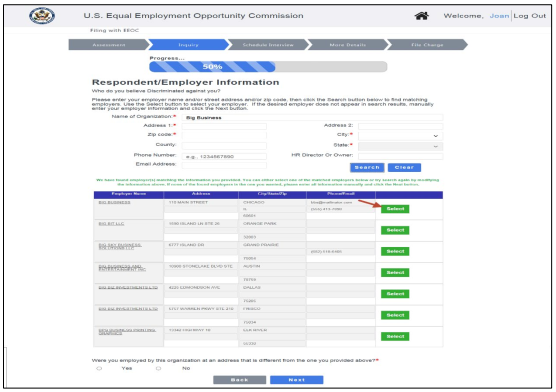
 A list of matching employers displays. Select the Select button next to your employer to select it. If your employer is not found, manually enter the employer information in the fields provided.
 If you work or worked at a location other than the employer’s primary address when the discrimination occurred, be sure to answer “Yes” to the last question on this page
➢ Tip! If you select Yes to the question “Were you employed by this organization at an address that is different from the one you provided above?” the screen will change to provide fields to enter your work location.
Previous Filing Information. Indicate whether you have previously filed a complaint about this matter, either with the EEOC or another agency.
➢ Tip! If you select Yes to the question “Have you already filed a charge with the EEOC about this matter?” the screen will change to provide fields to enter the date you filed (required) and the charge number.
➢ Tip! If you select Yes to the question “Have you filed a complaint with another agency about this matter?” the screen will change to provide fields to enter the agency name, date you filed, and what the complaint was about (all three are required).
➢ Tip! Previously your age could be entered as a number. To enter your age, you must provide your date of birth.
➢ Tip! For Gender, if you do not identify as Male or Female, you may select “Unspecified or another gender identity”.
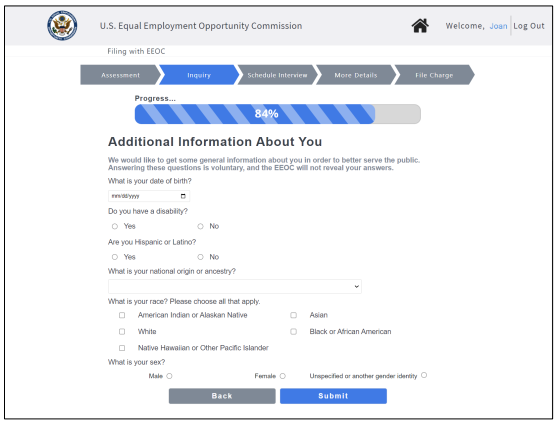 Step 13. Select the Submit button to submit the inquiry. The EEOC will evaluate your information and advise you on what they can do to assist you.
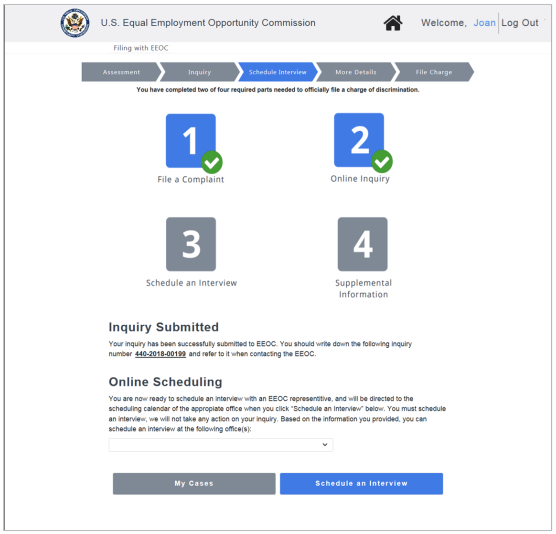
Step 14. When the inquiry is successfully submitted, a page displays confirming your submission with an inquiry number as shown below. (Note: the inquiry number displayed is for a fictional case.) Be sure to write the inquiry number down so you can refer to it later.
➢ Tip! If you choose not to pursue your inquiry, you may close it at any time, by selecting the Opt Out button (refer to Chapter 2 for details).
 Step 15. You will be presented with the instructions for Preservation of Evidence. You must read and confirm you have read them by checking the I confirm box at the bottom of the screen. You will not be able to take further action on your inquiry until you have confirmed that you have read the instructions.
➢ Tip! If you prefer to read and confirm the instructions later, you may select the I do not wish to confirm at this time box. However, the instructions will continue to be displayed when you open this case until you confirm them.


