
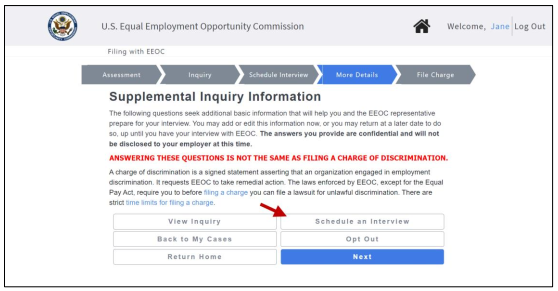
b) When you select My Cases and login, the button is displayed on the bottom of the My Charge page with a prompt to enter supplemental information. (If you have more than one case submitted with the EEOC, the My Cases listing will display first; select the Case Number to access the My Charge page.)
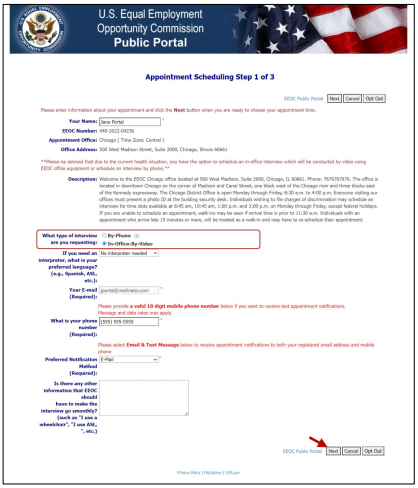
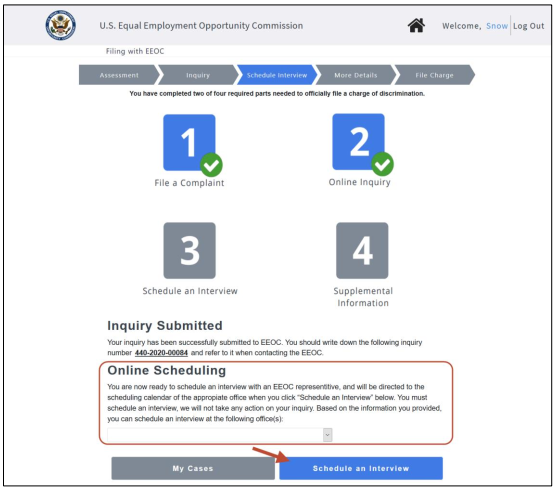 Step 2. A page with general appointment information displays. On this page you may provide information about the interview, including:
• Preferred language – If you require an interpreter, select the language that will need to be translated;
• Phone Number – Telephone number to use to contact you regarding this appointment;
• Notification Method – If you want to receive text reminders on your mobile phone, select ‘Email & Text Message’ from the Preferred Notification Method drop-down list; you will be asked to verify your phone number by entering a code sent by the system to the phone number you entered. To receive notifications by email only, select ‘Email’;
• Any additional information to help the interview go smoothly (e.g. “I use a wheelchair”, “I use ASL”, etc.)
➢ Tip! If you decide not to pursue the inquiry, you may select the Opt Out button (refer to EEOC Public Portal User’s Guide Vol 2 – Submit an Online Inquiry to EEOC for details).
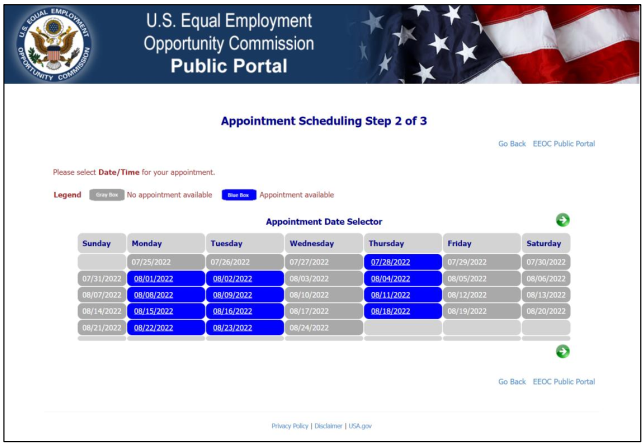
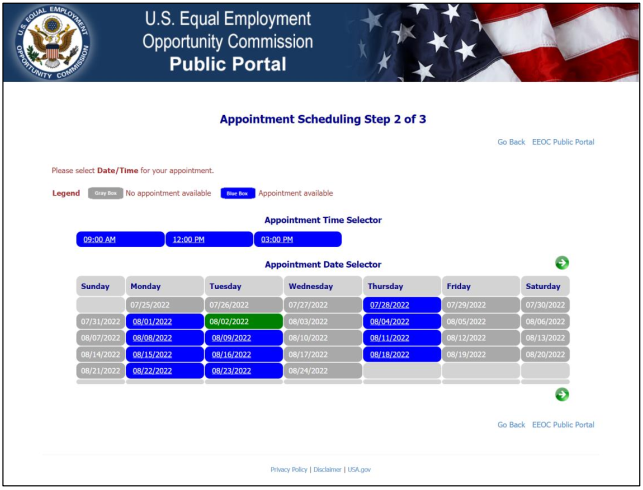
 Step 3. The Appointment Date Selector screen displays a calendar from which to select a date/time for your appointment. Use the arrow keys to navigate between months.
Select the date first:
 Then select a time from the available choices that are displayed:
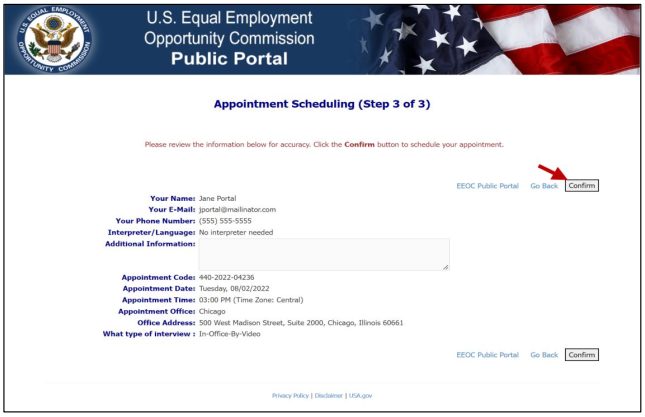
 Step 4. After both date and time are selected, a page will automatically display with your selections. Select the Confirm button to confirm the appointment. Select the Go Back link to make changes.
 Step 5. A confirmation page displays indicating that the interview is scheduled. You will be sent an email with the same information that appears on the page.
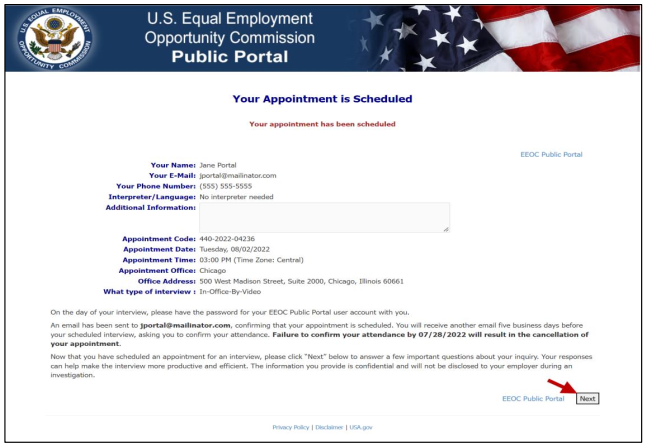 Select the Next button to continue. You will be returned to the My Charge page.
Step 6. If you need to change or cancel the interview, you can do that through the EEOC Public Portal also. Go to the My Charge page and select the Schedule an Interview button and it displays Reschedule Appointment and Cancel Appointment buttons. You will be sent an email confirming the change.
➢ Tip! If you decide not to pursue the inquiry, you may select the Opt Out button (refer to EEOC Public Portal User’s Guide Vol 2 – Submit an Online Inquiry to EEOC for details).
Step 7. You will be sent emails 20, 5, and 1 business day(s) before your appointment to remind you of the date and time of your appointment. When you receive the 5-day reminder, you must confirm that you will come to the interview on the date and time scheduled no later than 3 days prior to the appointment or it will be cancelled. You may also reschedule your appointment if you need to. The demand for EEOC appointments is very high, and they are trying to make more appointments available.If you selected ‘Email & Text Message’ as your notification method, the appointment reminders will also be sent as a text message to the mobile phone number you entered when you scheduled the interview. You may reply either by email or text message to confirm the interview appointment. You will also receive a text message if you choose to cancel your appointment, or if it is cancelled by the system should you fail to confirm your appointment in time after receiving the 5-day reminder message.


