
EEOC Public Portal User's Guide
Volume 7: Appealing Federal Agency Decisions to the EEOC
Chapter 0
Introduction to the EEOC Public Portal
0.0 | INTRODUCTION TO THE EEOC PUBLIC PORTAL
0.1 | ABOUT THE USER’S GUIDE
The following EEOC Public Portal User’s Guide documents are available; the highlighted Document Name is the one you’re reading now:
❖ Vol 2 – Submit an Online Inquiry to the EEOC
❖ Vol 3 – Post-Inquiry Tasks (learn about scheduling an interview with the EEOC, entering Supplemental Information, filing a Charge of Discrimination)
❖ Vol 4 – Post-Charge Tasks (learn how to check the status of your case, respond to an Invitation to Mediate, request/respond to a Respondent’s Position Statement)
❖ Vol 5 – Charge Closure (learn what happens when your charge has been closed)
❖ Vol 6 – Hearings with the EEOC
❖ Vol 7 – Appealing Federal Agency Decisions to the EEOC
❖ Vol 8 – Manage Case/Charge Information (learn how to display information about your case, enter/update your personal information, add representatives, and submit/receive documents associated with your case)
Chapter 1
Appeal an Agency’s Decision to the EEOC
1.0 | APPEAL AN AGENCY’S DECISION TO THE EEOC
To file an appeal with EEOC, perform the following steps:
Step 2. On the EEOC Public Portal home page, select Filing with EEOC.
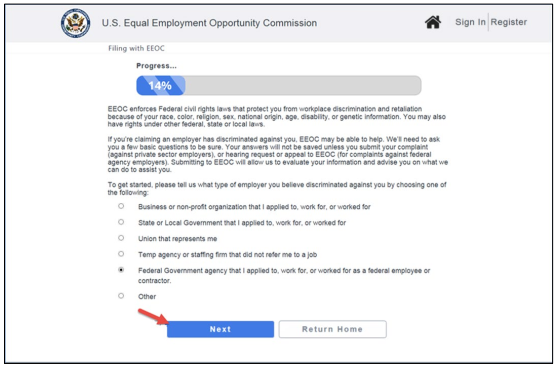
Step 3. When asked to identify the Type of Employer you believe discriminated against you, select ‘Federal Government agency...’ and select the Next button.
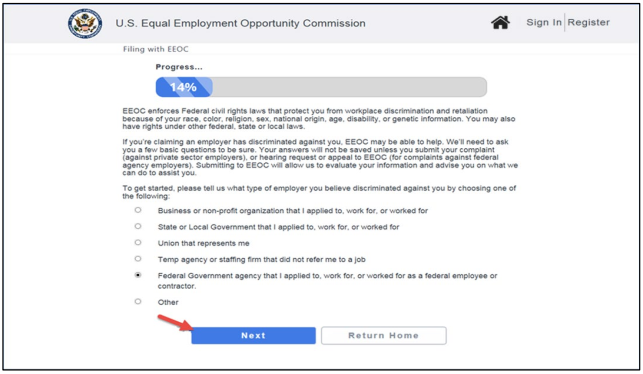 Step 4. An informational page displays with links to help you learn more about EEOC and the hearing and appeal processes. When you are ready, select the Next button.
Step 5. The What would you like to do? page displays. Select File a new appeal and select the Next button.
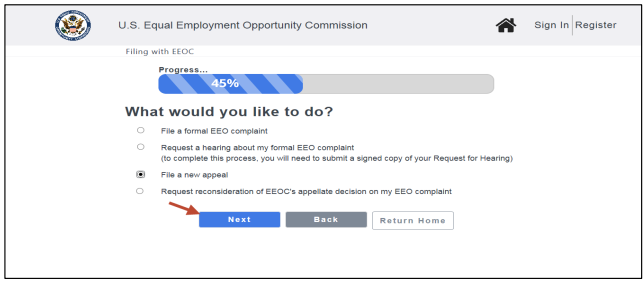 Step 6. An informational page displays with information about filing an appeal. Select the Next button to continue.
Step 7. You must have an EEOC Public Portal user account. If you have not used the EEOC Public Portal before, select the Sign-Up Now button to create your user account (refer to EEOC Public Portal User’s Guide Vol 1 – Getting Started for details).
➢ Tip! If you already registered with the EEOC, select the Returning Users button and login.
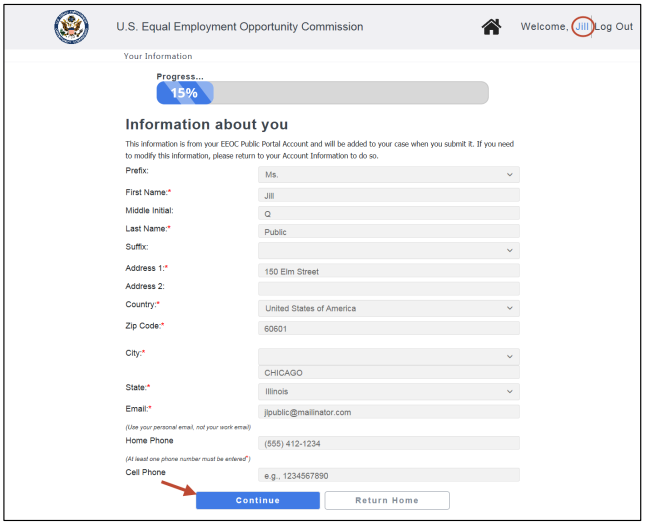
Step 8. Your personal information is displayed, which will be submitted with the online inquiry. This screen is view-only. Select the Continue button to proceed.➢ Tip! If you need to modify this information, select the link at the top of the page to go to your User Account Information. When you have finished and submitted your changes, you will be returned to inquiry submission process.
 Step 9. Next, you will be asked if you want to enter information about your representative (this is optional, but if you are being represented by an attorney or another individual in the EEO process, you should identify your representative here). Select Yes or No and select the Next button to continue.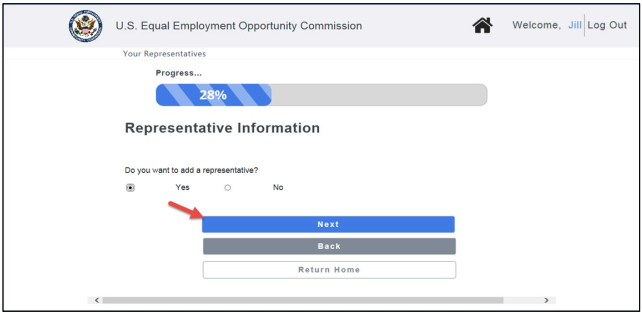
➢ Tip! If you choose not to enter a legal representative now, you will be able to enter one later, on the My Case page.
Step 10. If you selected Yes, a form will display for you to fill in the representative information. When you are finished, select the Next button to continue.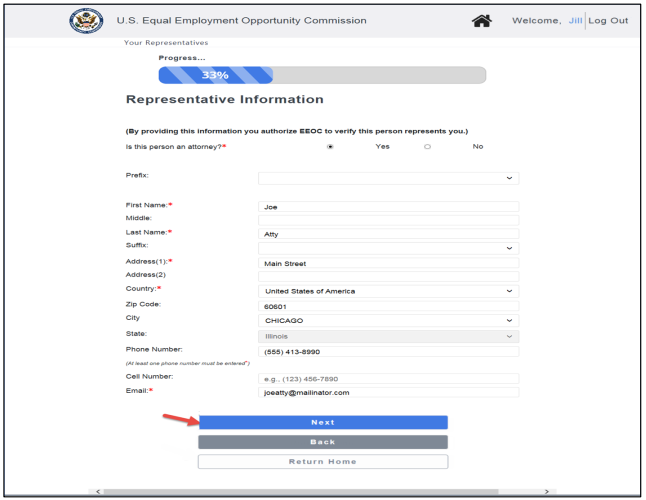
➢ Tip! EEOC verifies that the representative represents you by sending a verification email to the email address provided by you for your representative. EEOC expects a reply from the representative within 10 days of sending a verification email; if they haven’t received a reply after 10 days, then you will receive an email notifying you that EEOC has been unable to verify the representative.
Step 11. A page displays showing the representative(s) you have entered. Select the Add Another Representative button to add another representative. Select the View/Update Delete button to make changes. When you are finished, select the Next button to continue.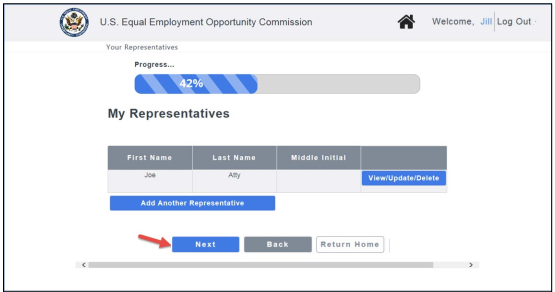 Step 12. Next, you will be asked to provide information about the Agency named in your EEO complaint, the identification number that the agency initially assigned to your complaint (Agency Complaint Number), and other information about your case. First enter the agency name.
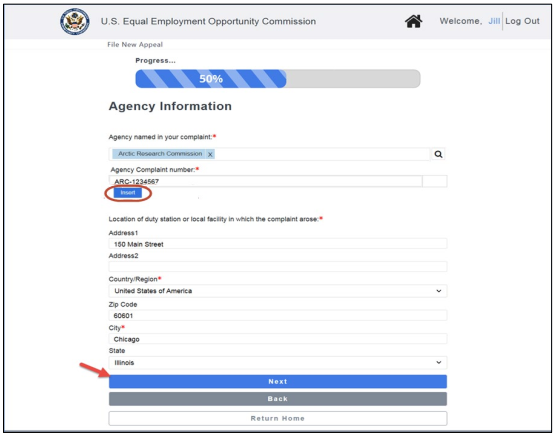
➢ Tip! Select the magnifying glass to display a list of agencies to choose from. You may remove a selection by selecting on the ‘x’ next to the agency name (an illustration is shown in Step 13).
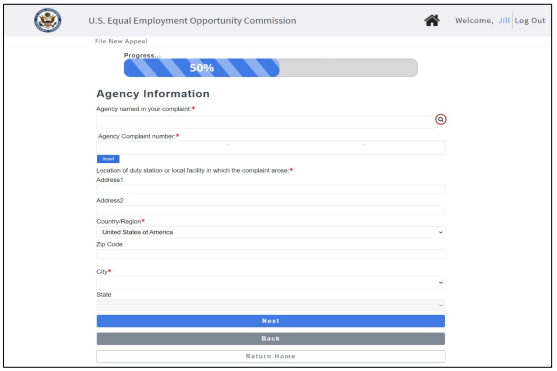 Step 13. Now, enter the Agency Complaint number and duty station location and select the Next button to continue.
➢ Tip! It is crucial that you enter the correct Agency Complaint Number(s) associated with your complaint. This will allow EEOC to get the right documents from the right recordkeeping agency about the right case. Entering the wrong Agency Complaint Number will delay the processing of your appeal.
➢ Tip! You can find the Agency Complaint Number listed in several documents, most commonly in your formal complaint (some agencies refer to this number as the “Case number”), the decision of an EEOC administrative judge, or the final decision of an agency. Agencies use different formats for their Agency Complaint Numbers.
➢ Tip! You may enter more than one Agency Complaint Number by selecting on the Insert button. as shown in the screenshot below.
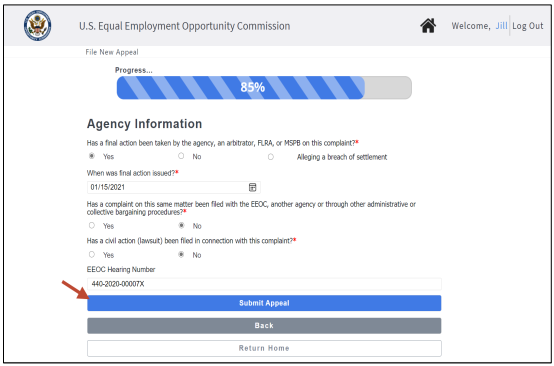
 Step 14. Next, you will be asked for some general information about your case (i.e. has final action been taken, has a complaint on this matter been filed with the EEOC or another agency, has a civil suit been filed). If you are appealing an agency’s final action based on an EEOC Administrative Judge’s decision (with or without a hearing), you should also provide the EEOC Hearing Number assigned to your hearing. When you are finished, select the Submit Appeal button.
➢ Tip! If you enter an EEOC Hearing Number, it must be the number of an EEOC hearing to proceed with an appeal.
➢ Tip! You can find the EEOC Hearing Number in the decision of the EEOC administrative judge. An example of an EEOC hearing number is 520-2012-00123X.
➢ Tip! You may enter only one hearing number. If you are filing an appeal of more than one hearing, you must file an appeal separately for each hearing.
 Step 15. When the request is successfully submitted, you will receive an email titled “Acknowledgment of Appeal Request through the EEOC Public Portal”. The Notice may also be downloaded from the My Cases page for the appeal.
In the Portal, a confirmation with your appeal number displays as shown below (Note: the number displayed is for a fictional appeal.)
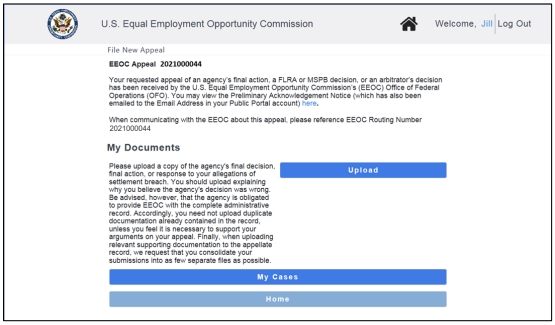 Be sure to write down the appeal number so that you can reference it when communicating with the EEOC. You may upload documents associated with your appeal by selecting on the Upload button before leaving this page (you may also upload documents later from the My Case page).
Chapter 2
Uploading Appeal Documents
2.0 | UPLOADING APPEAL DOCUMENTS
For Details refer to EEOC Public Portal User’s Guide Vol 8 – Managing Case Information.
Chapter 3
Viewing and Managing Information About Your Appeal
3.0 | VIEWING AND MANAGING INFORMATION ABOUT YOUR APPEAL
For Details refer to EEOC Public Portal User’s Guide Vol 8 – Managing Case Information.
Chapter 4
Request for Reconsideration (RFR) of EEOC’s Decision
4.0 | REQUEST FOR RECONSIDERATION (RFR) OF EEOC’S DECISION
To submit a request for reconsideration of EEOC’s appellate decision, you must provide:
• Your representative’s contact information
• The EEOC Appeal Number for the appellate decision you would like the EEOC to reconsider.
To submit a request for reconsideration to the EEOC, perform the following steps:
Step 2. On the EEOC Public Portal home page, select Filing with EEOC.
Step 3. When asked to identify the Type of Employer you believe discriminated against you, select ‘Federal Government agency...’ and select the Next button.
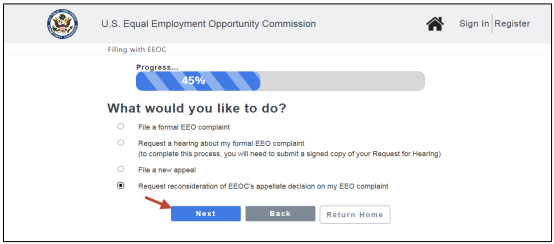
 Step 4. The What would you like to do? page displays. Select Request reconsideration of the EEOC’s appellate decision on my EEO Complaint and select the Next button.
 Step 5. An informational page displays with information about a request for reconsideration. Select the Next button to continue.
Step 6. You must have an EEOC Public Portal user account. If you have not used the EEOC Public Portal before, select the Sign-Up Now button to create your user account (refer to EEOC Public Portal User’s Guide Vol 1 – Getting Started for details).
➢ Tip! If you already registered with the EEOC, select the Returning Users button and login.
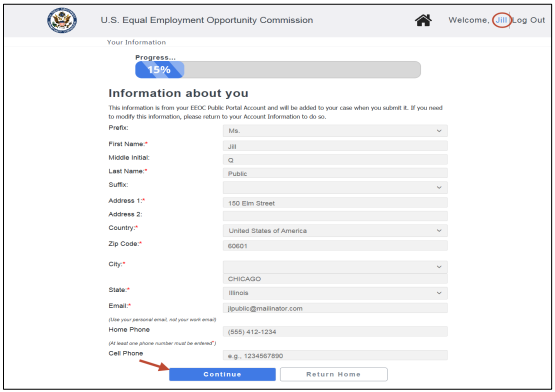
Step 7. Your personal information is displayed, which will be submitted with the request. This screen is view-only. Select the Continue button to proceed.➢ Tip! If you need to modify this information, select the link at the top of the page to go to your User Account Information. When you have finished and submitted your changes, you will be returned to RFR submission process.
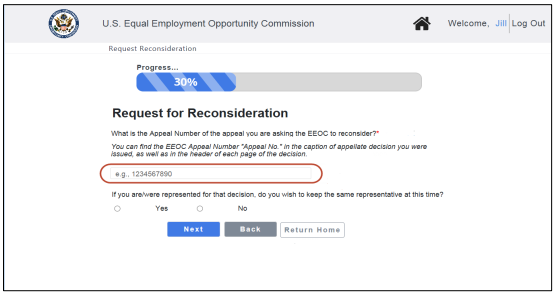
 Step 8. Next, you will be asked to provide the Appeal Number of the appeal you are asking the EEOC to reconsider. Enter the number in the space provided.
➢ Tip! You can find the EEOC Appeal Number in the decision that you received from the EEOC for your appeal. It is located on the first page of the decision, beside the label Appeal No.
➢ Tip! You may submit only one RFR for a case.
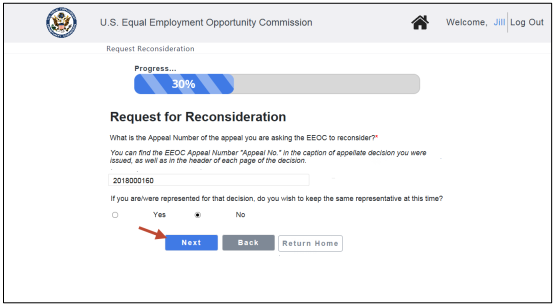
 Step 9. Next you may identify your representative(s). First, you will be asked if you want to keep the same representative as in the prior appeal. Select Yes or No and select the Next button to continue.
 Step 10. If you chose to keep the same representative, that representative’s information will be copied from the prior appeal to the new RFR. If you chose not to keep the same representative, you will be asked if you want to enter information about your representative (this is optional, but if you are being represented by an attorney or another individual in the EEO process, you should identify your representative here). Select Yes or No and select the Next button to continue.
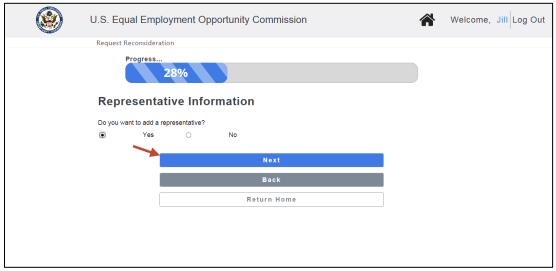 Step 11. If you selected Yes, a form will display for you to fill in the representative information. When you are finished, select the Next button to continue.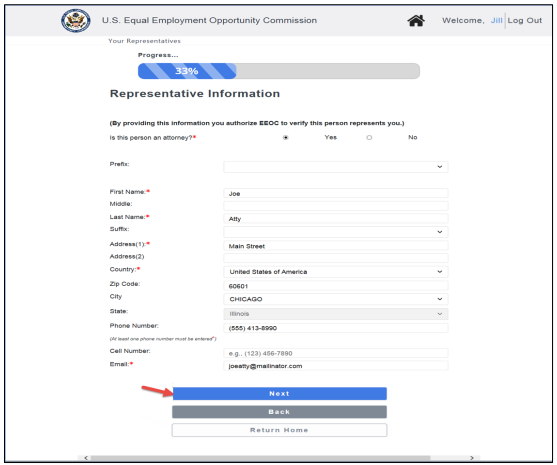
➢ Tip! If you added a new representative, the EEOC verifies that the representative represents you by sending a verification email to the email address provided by you for your representative. EEOC expects a reply from the representative within 10 days of sending a verification email; if they haven’t received a reply after 10 days, then you will receive an email notifying you that EEOC has been unable to verify the representative.
Step 12. A page displays showing the representative(s) you have entered. Select the Add Another Representative button to add another representative. Select the View/Update/Delete button to make changes. When you are finished, select the Next button to continue.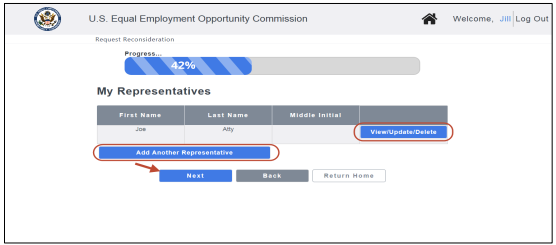 Step 13. Once you have entered the appeal number and any representatives(s) you are ready to submit the RFR. Select the Submit button to complete the submission.
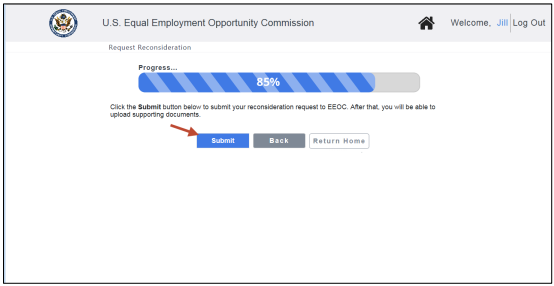 Step 14. When the request is successfully submitted, you and the Agency will receive an email with the Preliminary Acknowledgement Notice. The Notice may also be viewed on the My Cases page for the RFR.
In the Portal, a confirmation with the EEOC tracking number for your request displays as shown below. (Note: the number displayed is for a fictional RFR.)
Be sure to write down the tracking number so that you can reference it when communicating with the EEOC.
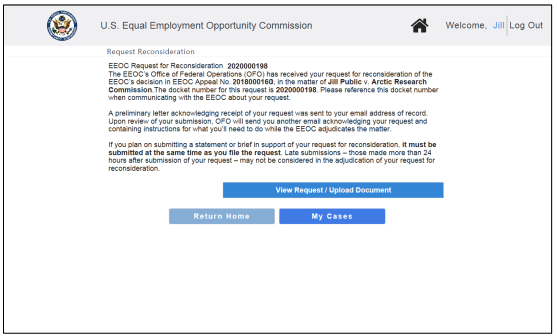 A follow-up Acknowledgement Letter will be emailed to you and the Agency after the case is docketed.
Step 15. Go to the My Case page for your case to upload supporting documents. Select the View Request/Upload Document button.
➢ Tip! EEOC requires that any supporting statement or brief be filed at the same time as you submit your request for reconsideration. Accordingly, you are strongly advised to submit supporting documents or a statement in support of your request for reconsideration through the EEOC Public Portal at the time you submit your request for reconsideration. Later submissions may not be considered in the adjudication of your request.
It should help you as you contemplate/file your charge of discrimination.
Moreover, you might need to reference it during your pursuit of justice.
For instance, you might need to use this handbook in order to protect yourself from organizations/judges/lawyers who break the law (see this example of a Florida judge who outright committed perjury).
Nevertheless – and as always – please get the justice you deserve.
Sincerely,
www.TextBookDiscrimination.com


