
EEOC Public Portal User's Guide
Volume 4: Post-Charge Tasks
Chapter 0
Introduction to the EEOC Public Portal
0.0 | INTRODUCTION TO THE EEOC PUBLIC PORTAL
0.1 | ABOUT THE USER’S GUIDE
The following EEOC Public Portal User’s Guide documents are available; the highlighted Document Name is the one you’re reading right now:
❖ Vol 2 – Submit an Online Inquiry to the EEOC
❖ Vol 3 – Post-Inquiry Tasks (learn about scheduling an interview with the EEOC, entering Supplemental Information, filing a Charge of Discrimination)
❖ Vol 4 – Post-Charge Tasks (learn how to check the status of your case, respond to an Invitation to Mediate, request/respond to a Respondent’s Position Statement)
❖ Vol 5 – Charge Closure (learn what happens when your charge has been closed)
❖ Vol 6 – Hearings with the EEOC
❖ Vol 7 – Appeals to the EEOC
❖ Vol 8 – Manage Case/Charge Information (learn how to display information about your case, enter/update your personal information, add representatives, and submit/receive documents associated with your case)
Chapter 1
What Happens After Filing a Charge
1.0 | WHAT HAPPENS AFTER FILING A CHARGE
Prior to starting an investigation, the EEOC may invite you and the respondent to participate in the EEOC’s Mediation Program. Mediation is an opportunity for both parties to work with a neutral mediator to discuss and resolve the charge. There are several reasons to mediate:
2. Most mediations are completed in one session. Legal representation is not required because mediation is an informal process.
3. A mediated solution also allows you to control the outcome while avoiding the cost, length, and uncertainty of an investigation and litigation.
The following tasks may be performed after filing a charge, most by using the EEOC Public Portal, and are described in this document:
2. Amend a Charge (Chapter 3)
3. Respond to an Invitation to Mediate Your Charge (Chapter 4)
4. Request and Receive a Copy of the Respondent’s Position Statement (Chapter 5)
5. Submit a Response to the Respondent’s Position Statement (Chapter 6)
You should also keep your contact information and legal representative information (if you are being represented) up-to-date. Also, be sure to upload any documents relevant to your charge. (For details on these tasks, refer to EEOC Public Portal User’s Guide Vol 8 – Manage Case Information.)
The EEOC will notify you when your charge is closed, either because of successful mediation or at the conclusion of its investigation. You may view/download the closure document(s) using the EEOC Public Portal. For more on information on what happens when a charge is closed, refer to EEOC Public Portal User’s Guide Vol 5 – Charge Closure.
Chapter 2
Check the Status of Your Charge
2.0 | CHECK THE STATUS OF YOUR CHARGE
Step 2. The My Cases page displays:
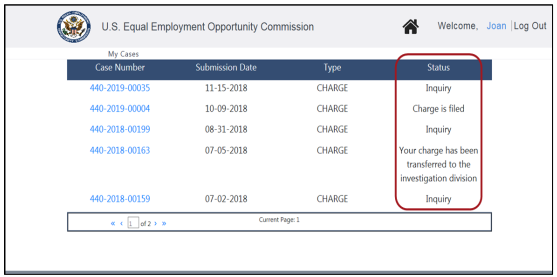 The Status column displays the current status for each charge/inquiry you have filed with the EEOC. You may then select the Case Number to display the My Case page and view additional information about the status of your case.
You can obtain details on the status of your charge by using the EEOC’s Online Charge Status System. The system can be accessed through the EEOC Public Portal, as described below, and also at http://www.eeoc.gov/employees/charge_status.cfm
To view the status of your charge, from the EEOC webpage perform the following steps: Step 3. Select the What you should DO after filing a charge link at the bottom of the page.
Step 4. Select the CHECK THE STATUS OF YOUR CHARGE ONLINE link.
Step 5. Select the Check your charge status link.
Step 6. The status screen displays.
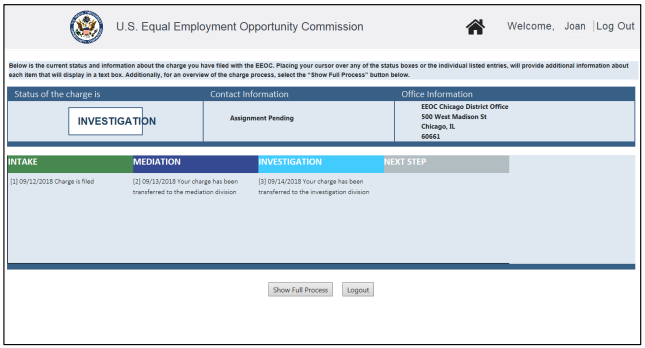
➢ Tip! Hovering the mouse over a Status will display additional information about that activity.
➢ Tip! Hovering the mouse over “Next Steps” will display a narrative of the possible next steps in your case.
The statuses are defined in Table 1 below:
| Status Category | Category Narrative |
|---|---|
| Intake | The Charging Party files a charge of discrimination against their employer; based on the information the CP provides the EEOC sends a notice and a copy of the charge to the employer. |
| Mediation | The EEOC works with you and your employer to try to resolve your charge by a voluntary settlement through an informal and confidential manner with the help of a neutral mediator. If your charge is not sent to mediation or if mediation does not resolve the problem, the charge will be given to an investigator. |
| Investigation | The EEOC gathers information to find out if a law has been violated. After the investigation is finished, the EEOC will let you and the employer know the outcome. |
| Conciliation | If the EEOC determines a law has been violated, it tries to remedy the harm caused by discrimination through attempting to reach a voluntary settlement with the employer. If a settlement cannot be reached, your case will be referred to our legal staff to decide whether or not the agency will file a lawsuit on your behalf. |
| Closed | Will describe the reason the case was closed. Category narrative will depend on the Closure Activity that was applied to your case. |
Chapter 2
Amend Your Charge
3.0 | CHAPTER 3 INTRO
You may amend a charge in the EEOC Public Portal by digitally signing the amended charge of discrimination that the EEOC prepares for you. Using the EEOC Public Portal you and/or your representative (if you have one) can review the document and recommend changes to it, but your representative cannot sign an amended charge of discrimination on your behalf.
3.1 | REVIEWING AN AMENDED CHARGE
3.1.1 Review by Charging Party (CP)
To review an amended charge of discrimination and recommend changes to the EEOC, perform the following steps:Step 2. Open the EEOC Public Portal and select My Cases.
Step 3. The sign in page displays. Enter your user ID and password to login.
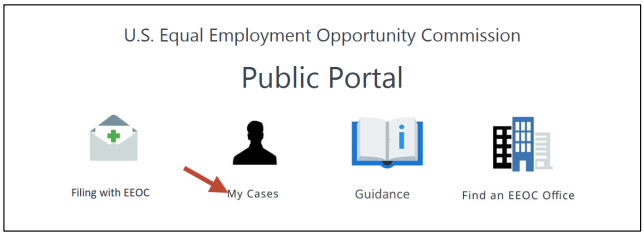 Step 4. If you have more than one case submitted with the EEOC, the My Cases listing displays first; select the Charge Number to access the My Charge page.
Step 5. The My Charge page displays with the information relating to the Amended Charge of Discrimination that the EEOC has prepared.
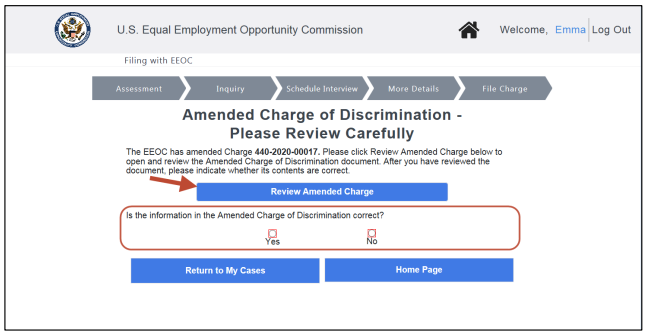 Step 6. Select the Review Amended Charge button to view the Amended Charge of Discrimination, then use the Yes/No buttons to reply to the question “Is the information in the Amended Charge of Discrimination correct?”.
Step 7. If you want to make changes or corrections to the Amended Charge of Discrimination, select the No button. A space to enter changes and a Submit Changes button are displayed.
Enter your recommendations in the space provided and select the Submit Changes button. Your changes are automatically sent to the EEOC.
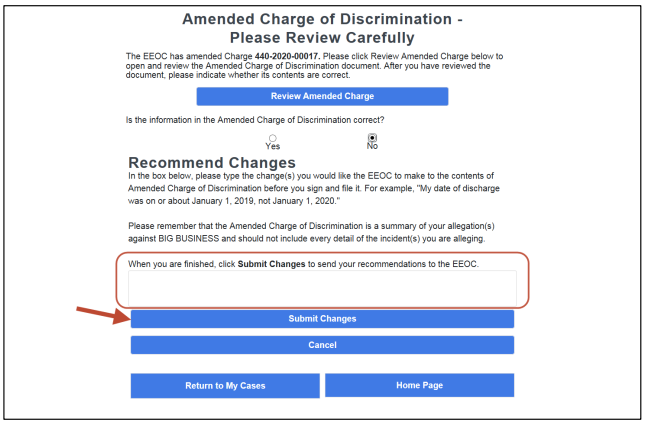 The EEOC addresses the recommended changes and sends the modified document back to you for review (Note: this step can be repeated if necessary).
Step 8. You can then sign and file the Amended Charge of Discrimination (refer to Section 3.2 below).
3.1.2 Review by CP’s Representative
To review an amended charge of discrimination and recommend changes to the EEOC, perform the following steps:Step 2. If you want to make changes or corrections to the Amended Charge of Discrimination, select the No button. A space to enter changes and a Submit Changes button are displayed (refer to illustration in Step 7 above).
Enter your recommendations in the space provided and select the Submit Changes button. Your changes are automatically sent to the EEOC.
The EEOC addresses the recommended changes and sends the modified document back to you for review (Note: this step can be repeated if necessary).
Step 3. If the Amended Charge of Discrimination is correct, select the Yes button. The CP can then sign and file the Amended Charge of Discrimination. The following message displays:
Our records indicate that you are not the charging party named in the Amended Charge of Discrimination but are representing the charging party. Only the charging party may sign & file the Amended Charge through the EEOC Public Portal.
3.2 | SIGNING & FILING AN AMENDED CHARGE (CPS)
Step 2. Once you have verified that the document is correct, to sign and file the Amended Charge of discrimination, select the Yes button. The confirmation page appears.
Step 3. Check the box to confirm that the information in the charge is true and correct, then select the Sign & File button.
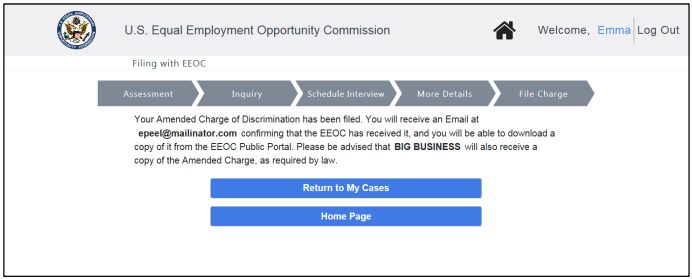
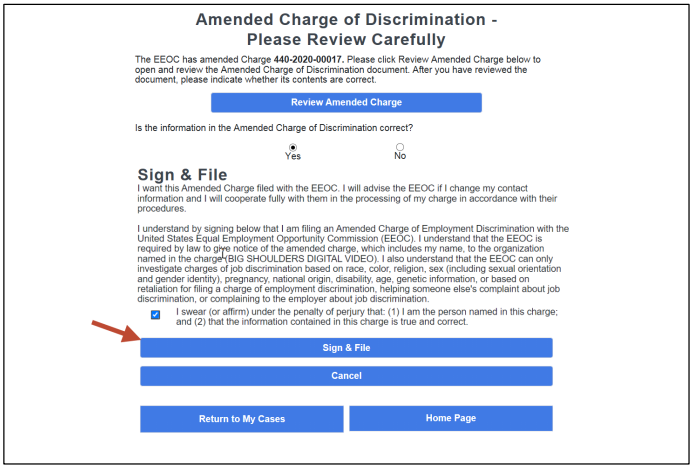 Step 4. The Amended Charge of Discrimination is automatically regenerated to add your electronic signature and uploaded. A signed copy of the Amended Charge of Discrimination will be emailed to you.
Select either the Return to My Cases or Home Page button to continue.
Chapter 4
Respond to an Invitation to Mediate
4.0 | CHAPTER 4 INTRO
4.1 | ACCEPTING OR REJECTING AN INVITATION TO MEDIATE
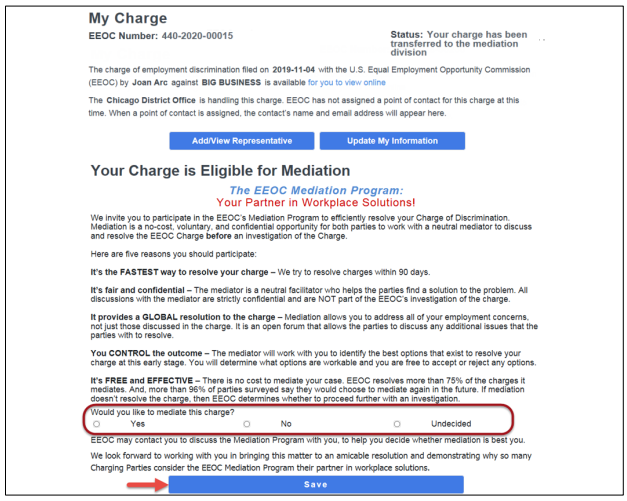
Step 2. Select a response, either ‘Yes’, ‘No’, or ‘Undecided’ and select the Save button.
NOTE: Once you have chosen ‘Yes’ or ‘No’ in the EEOC Public Portal, the selection cannot be undone. If you want to change your response, either because it was chosen in error, or because you have changed your mind about mediation, contact the EEOC and they will work with you to determine the appropriate next steps in the process.
Step 3. If you selected ‘Yes’, this message displays in the EEOC Public Portal:
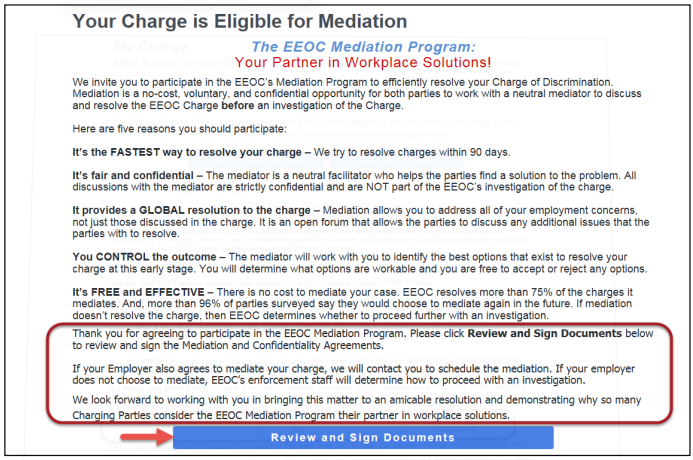
Thank you for agreeing to participate in the EEOC Mediation Program. Please click Review and Sign Documents below to review and sign the Mediation and Confidentiality Agreements.Then you must review and sign the Mediation and Confidentiality agreements (the full text of the agreements can be found in Appendix A). Select the Review & Sign Documents button.
If your Employer also agrees to mediate your charge, we will contact you to schedule the mediation. If your employer does not choose to mediate, EEOC’s enforcement staff will determine how to proceed with an investigation.
We look forward to working with you in bringing this matter to amicable resolution and demonstrating why so many Charging Parties consider the EEOC Mediation Program their partner in workplace solutions.
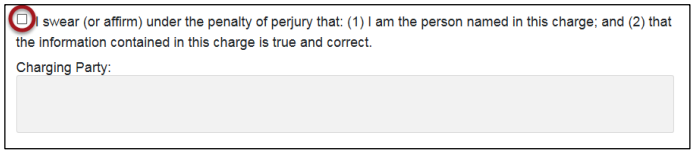
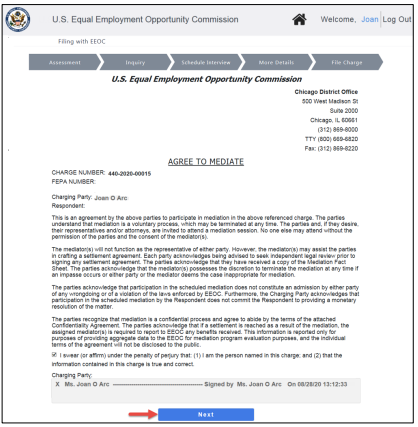
 First the Agreement to Mediate displays. Select the box to “check” it and digitally sign the agreement (the signature will be automatically populated), then select the Next button.
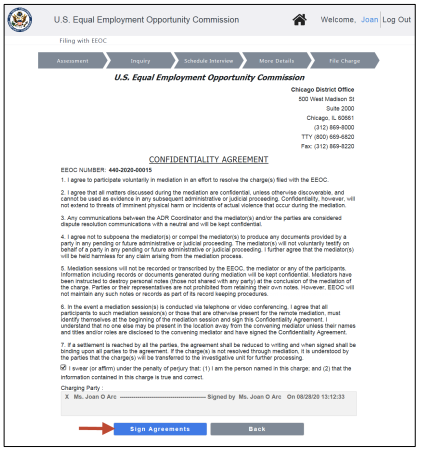
 Then the ADR Confidentiality Agreement displays. Select the box to “check” it and digitally sign the agreement (the signature will be automatically populated), then select the Sign Agreements button. If you want to go back to the Mediation Agreement, select the Back button.
 You will now be returned to the My Charge page. The signed agreements will be automatically uploaded and appear in the My Documents list. If the Respondent also agrees to mediate, then the EEOC will contact you to schedule the mediation.
Step 4. If you selected ‘No’, this message displays in the EEOC Public Portal:
Thank you for your response. EEOC’s staff will determine how to proceed with an investigation.Step 5. If you selected ‘Undecided’, this message displays in the EEOC Public Portal:
Thank you for considering the EEOC Mediation Program. If you would like to discuss this matter with a member of our mediation staff, please contact {ADR Contact Full Name} at (ADR Contact Phone Number) or {ADR Contact Email Address} on or before {Mediation Response Date}.
4.2 | SIGNING THE MEDIATION AGREEMENTS (ADDITIONAL PARTIES)
To sign the Mediation Agreements after it has been decided to participate in mediation, select the Review and Sign Documents button and follow Step 3 in Section 4.1 above. The signed documents will appear in the My Documents list.
4.3 | OTHER MEDIATION OUTCOMES
Both parties have agreed to mediate. As a result, the mediator will contact the parties in the coming weeks to discuss scheduling. In the meantime, all investigative processing has been put on suspense pending the outcome of mediation.If your case is not eligible for mediation, this message displays in the EEOC Public Portal:
Upon further review this charge is deemed ineligible for mediation at this time and will be transferred to EEOC’s Enforcement Unit.If the attempt to mediate is unsuccessful, this message displays in the EEOC Public Portal:
EEOC’s efforts to mediate this charge were unsuccessful, so EEOC will request the Respondent to provide a position statement and notify you when we receive it.
Chapter 5
Request and Receive a Position Statement
5.0 | REQUEST AND RECEIVE A POSITION STATEMENT
To request and receive a copy of the Respondent’s Position Statement, perform the following steps:
Step 2. After the Position Statement is uploaded to a charge, you and your Representative (if one has been identified) will receive an email from the EEOC that a Position Statement has been requested from the Respondent.
Step 3. When you login to the EEOC Public Portal, this message displays:
We asked {Respondent Organization} to submit a Position Statement on your charge. You may request the Position Statement if you would like to see it. Please be aware that by requesting these documents, you agree that you will only share them with persons in a privileged relationship, such as a spouse, clergy, or medical, financial, or legal advisor. Would you like to receive a copy of the Respondent’s Position Statement once we’ve received it and reviewed it?Step 4. You may select Yes to request the Position Statement. If you select Yes, this message displays in the EEOC Public Portal:
The EEOC has received your request for the respondent’s Position Statement. EEOC will notify you by email when the Position Statement is available for you to review. Before we provide the Position Statement and attachments to you, the EEOC investigator reviews the documents to ensure they do not contain confidential information. We ask you to be patient as we receive many requests for Position Statements and it may take several weeks to review and release the Position Statement and attachments related to your charge.Step 5. Typically, the EEOC will release the document to the EEOC Public Portal. The EEOC may determine that the document needs to be redacted first and, if so, will make the necessary changes before releasing it.
Step 6. Once the document has been released to the EEOC Public Portal, you and your representative (if one has been identified) will receive an email that the document is available.
Step 7. When you login into the EEOC Public Portal, this message displays,
EEOC has provided the respondent’s Position Statement, relevant attachments, and any supplemental position statements on this page, under Document Management. It will be helpful to EEOC’s investigation if you provide a response to the Respondent’s position statement by {date of Position Statement issuance + 20 days}. Any information you provide will be taken into consideration when the EEOC reviews your case. Please upload your response through the Public Portal. Be sure to identify any further witnesses, their contact information, and a brief synopsis of what they will say. There is no specific format for your response; however, be sure to point out discrepancies in the employer’s information and explain what you believe to have happened. This is your opportunity to provide any additional information you feel is relevant to support your case. Please be aware that by receiving these documents before you have filed a lawsuit based upon your charge, you agree that you will only show them with persons in a privileged relationship, such as a spouse, clergy, or medical, financial, or legal advisor.Step 8. To view/download a Position Statement, scroll down to My Documents and select the Name.
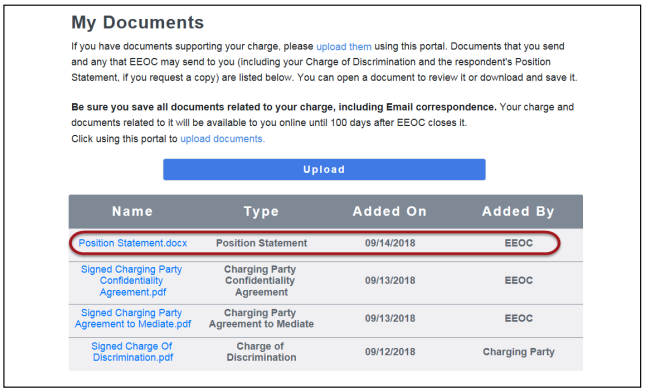 Step 9. Select Open to open the document or Save to save the document on your computer. (You may also rename the document, if you choose to save it.) You may also upload your response in the EEOC Public Portal (refer to Chapter 6).
Chapter 6
Provide a Response to a Position Statement
6.0 | PROVIDE A RESPONSE TO A POSITION STATEMENT
To upload a document containing a response to a Position Statement,
Step 2. Select the Upload button.
Step 3. Select ‘Response to Position Statement’ for the Type of Document.
Step 4. Attach the document and select the Upload button.
Step 5. The document you uploaded displays at the top of the My Documents list (documents are listed by Added On date, in reverse chronological order, with the most recently uploaded documents listed first).
Appendix X
Mediation Documents
X-A | APPENDIX A: MEDIATION DOCUMENTS
Invitation to Mediate for CP
The EEOC Mediation Program:
Your Partner in Workplace Solutions!
We invite you to participate in the EEOC’s Mediation Program to efficiently resolve your Charge of Discrimination. Mediation is a no-cost, voluntary, and confidential opportunity for both parties to work with a neutral mediator to discuss and resolve the EEOC Charge before an investigation of the Charge.Here are five reasons you should participate:
It’s fair and confidential – The mediator is a neutral facilitator who helps the parties find a solution to the problem. All discussions with the mediator are strictly confidential and are NOT part of the EEOC’s investigation of the charge.
It provides a GLOBAL resolution to the charge – Mediation allows you to address all of your employment concerns, not just those discussed in the charge. It is an open forum that allows the parties to discuss any additional issues that the parties wish to resolve.
You CONTROL the outcome – The mediator will work with you to identify the best options that exist to resolve your charge at this early stage. You will determine what options are workable and you are free to accept or reject any options.
It’s FREE and EFFECTIVE – There is no cost to mediate your case. EEOC resolves more than 75% of the charges it mediates. And, more than 96% of parties surveyed say they would choose to mediate again in the future. If mediation doesn’t resolve the charge, then EEOC determines whether to proceed further with an investigation.
Would you like to mediate this charge?
It should help you as you contemplate/file your charge of discrimination.
For instance, you might need to use this handbook in order to protect yourself from organizations/judges/lawyers who break the law (see this example of a Florida judge who outright committed perjury).
Nevertheless – and as always – please get the justice you deserve.
Sincerely,
www.TextBookDiscrimination.com


