
➢ Tip! You may enter multiple representatives. The representatives you enter will be listed in the table in the My Representatives section on the My Case page.
EEOC Public Portal User's Guide
Volume 8: Manage Case Information
Chapter 3
MANAGE REPRESENTATIVES
3.0 | CHAPTER 3 INTRO
3.1 | ADD A REPRESENTATIVE
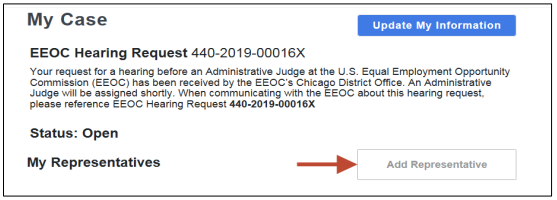 Step 2. The Representative Information page displays. Indicate if the person who represents you is an attorney by selecting either the Yes or No button.
Step 3. Enter the information for the representative.
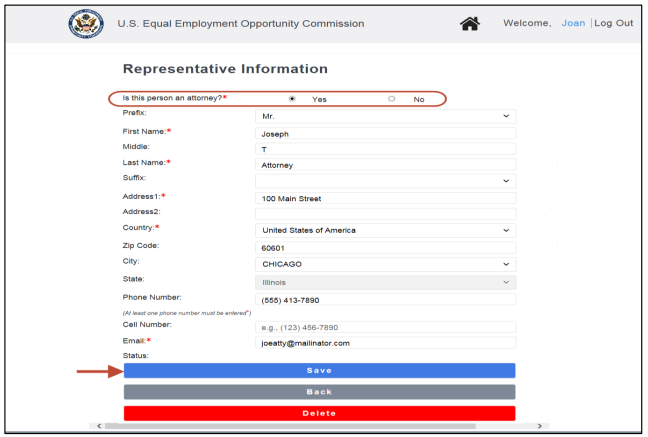
➢ Tip! When the Zip Code is entered, the city and state fields are automatically populated.
Step 4. Select the Save button. Select the Back button to return to the My Case page.Step 5. The representative you identified will be sent an email to confirm that he/she will be representing you.
Step 6. If the EEOC does not receive confirmation from the representative after 10 days, you may confirm by uploading a Notice of Representative signed by your representative, or you may designate a different representative.
3.2 | UPDATE/DELETE A REPRESENTATIVE
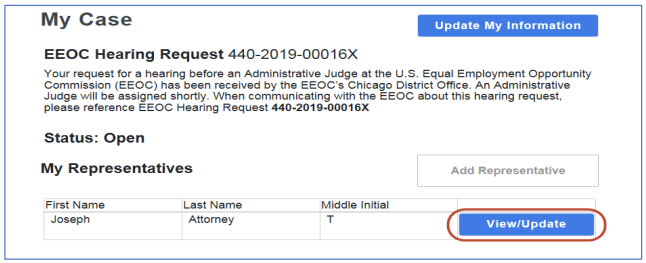 Step 2. When the Representative Information page displays, make any necessary changes and select the Save button.
Step 3. If you need to delete a representative, select the Delete button. When the confirmation prompt displays, select the Yes button to delete.
Step 4. Select the Back button to return to the My Case page.
You might need to reference it during your pursuit of justice.
For instance, you might need to examine one of these passages in order to protect yourself from organizations that have discriminated against you. Please stay vigilant, though, because you might encounter severe pitfalls along the way (see this example of a Florida judge who outright committed perjury).
Nevertheless – and as always – please get the justice you deserve.
Sincerely,
www.TextBookDiscrimination.com


