
EEOC Public Portal User's Guide
Volume 8: Manage Case Info
Chapter 0
Introduction to the EEOC Public Portal
0.0 | INTRODUCTION TO THE EEOC PUBLIC PORTAL
0.1 | ABOUT THE USER’S GUIDE
The following EEOC Public Portal User’s Guide documents are available; the highlighted Document Name is the one you’re reading right now:
❖ Vol 2 – Submit an Online Inquiry to the EEOC
❖ Vol 3 – Post-Inquiry Tasks (learn about scheduling an interview with the EEOC, entering Supplemental Information, filing a Charge of Discrimination)
❖ Vol 4 – Post-Charge Tasks (learn how to check the status of your case, respond to an Invitation to Mediate, request/respond to a Respondent’s Position Statement)
❖ Vol 5 – Charge Closure (learn what happens when your charge has been closed)
❖ Vol 6 – Hearings with the EEOC
❖ Vol 7 – Appealing Federal Agency Decisions to the EEOC
❖ Vol 8 – Manage Case/Charge Information (learn how to display information about your case, enter/update your personal information, add representatives, and submit/receive documents associated with your case)
Chapter 1
Displaying Information About Your Case
1.0 | CHAPTER 1 INTRO
The My Cases Listing is sorted by submission date, with newest cases listed first. If you have a large number of cases, use the page navigation buttons (<< < > >>) to move between pages. Select the case you wish to view by selecting the Case Number; this will display the My Case page.
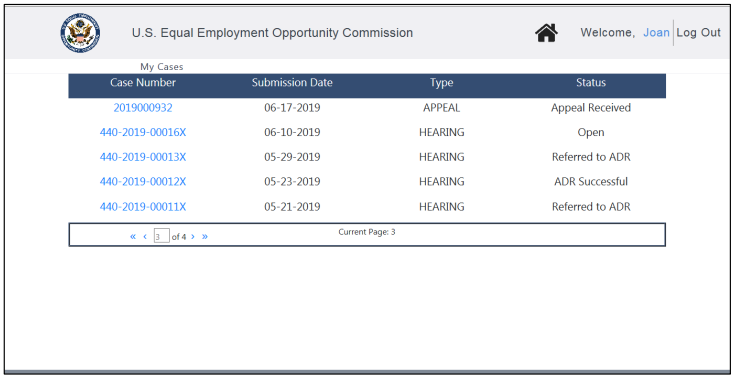
o Referred to ADR – An invitation to ADR has been sent to both parties and the EEOC is waiting for their response.
o ADR Scheduling – The EEOC is in the process of scheduling an ADR session with both parties.
o ADR Scheduled – The EEOC has scheduled an ADR session with both parties.
o ADR Held – The ADR session was held.
o ADR Complete – ADR has been completed.
o ADR Successful – The ADR session resulted in a resolution of the complaint.
o ADR Unsuccessful – The ADR session did not result in a resolution of the complaint.
o Pending AJ Assignment – The EEOC is in the process of assigning the complaint to an Administrative Judge to continue processing.
o Assigned to AJ – The EEOC has assigned the complaint to an Administrative Judge to continue processing.
o Hearing Scheduled – The EEOC has scheduled a hearing on the complaint.
o Hearing Held – The hearing on the complaint was concluded.
o Closure Document Issued – A closure document was issued in the case.
o Closed – The case is now closed.
o Complaint File Received – The EEOC has received the complaint file from the agency.
o Complaint File Not Received – The EEOC has not received the complaint file from the agency.
o Appeal Being Processed – The EEOC is working on the appeal.
o Appeal Closed/Issued – The EEOC has issued a decision and closed the appeal.
1.1 | MY CASE PAGE
1.1.1 My Case Page for Hearings
If you have requested a hearing, the My Case page will appear as shown in Figure 2 below (the page shown illustrates the My Case page for a hearing request, but the My Case page for an appeal or RFR is very similar). The page is divided into three sections: My Case, My Representatives, and My Documents. Descriptions of the numbered items follow Figure 2. (NOTE: Numbers are not actually seen on the screen.)For hearing requests, you will see the following additional information on the My Case page:
• If the hearing request is eligible for ADR, you will see the invitation to participate in ADR on the My Case page between the My Case and My Representatives sections. For details on accepting or rejecting an invitation to participate in ADR, refer to EEOC Public Portal User’s Guide Volume 6 – Hearings with the EEOC.
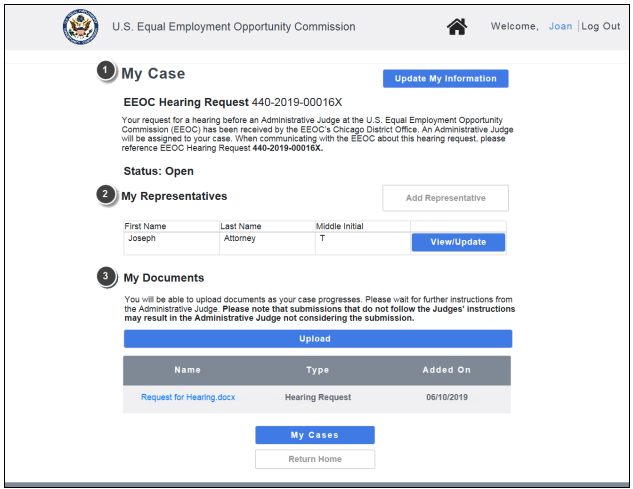
❷ My Representatives. This section displays a table of the (legal or non-legal) representatives you have entered. You may add, update, or delete your representatives here. If you have not entered any representatives, the My Representatives section displays only the Add Representative button. (Chapter 3)
❸ My Documents. This section displays the documents associated with your hearing/appeal/RFR that you have submitted, the agency has submitted, or that the EEOC has sent to you (e.g. Report of Investigation, Initial Acknowledgement Notice). You may view, download, and/or submit documents here. (Chapter 4)
1.1.2 My Case Page for Appeals/RFRs
If you have filed an appeal or submitted an RFR, the My Case page will appear as shown in Figure 3 below (the page shown illustrates the My Case page for an initial appeal, but the My Case page for an RFR is very similar). The page is divided into three sections: My Case, My Representatives, and My Documents.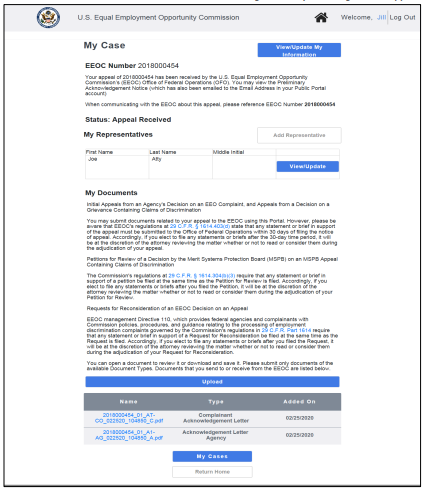
1.1.3 My Case Page for Closed Cases
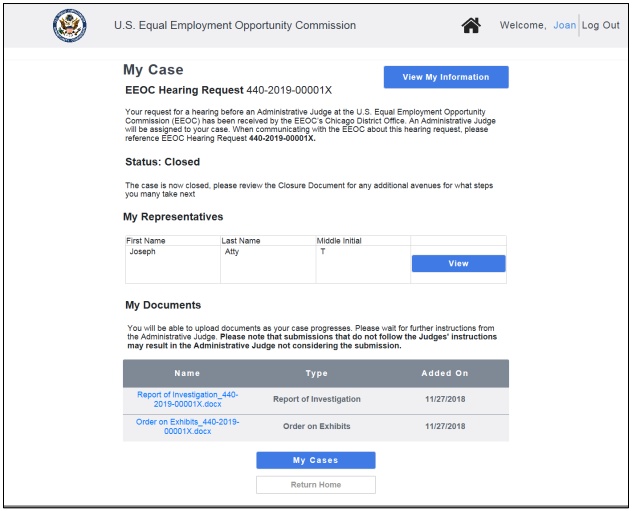
You may continue to view information for your case after it has been closed. You may not make any changes to the case information or representatives, and you may not submit any documents (though downloading documents is permitted).For a closed case a read-only version of the My Case page will appear as shown in Figure 4 below (the page shown illustrates the My Case page for a closed hearing, but the My Case page for a closed appeal or RFR is very similar). Similar to the page for an open hearing/appeal, the page is divided into 3 sections: My Case, My Representatives, and My Documents.
Chapter 2
Manage Contact Information
2.0 | MANAGE CONTACT INFORMATION
➢ Tip! You cannot change your email address using the Update My Information button on the My Case page for a specific case. You must use the Update Account page as described in EEOC Public Portal User’s Guide - Volume 1 – Getting Started.
To update your contact information, perform the following steps: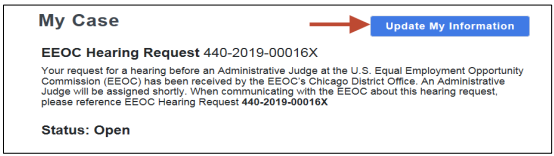 Step 2. On the Complainant Information page, your current contact information is displayed (initially you will see the information you entered when submitting your request). Make any needed changes.
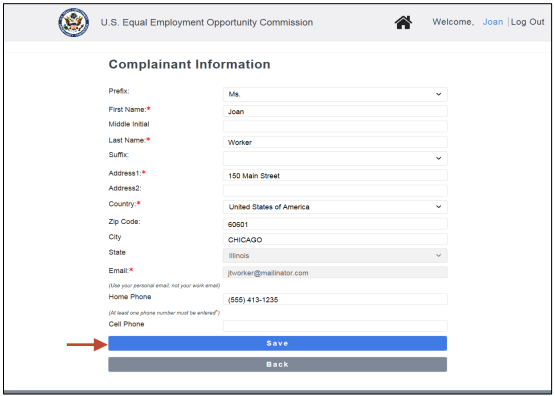 Step 3. Select the Save button. Select the Back button to return to the My Case page.
Step 4. Select Update My Information at any time to view/update the information.
Chapter 3
Manage Representatives
3.0 | CHAPTER 3 INTRO
➢ Tip! You may enter multiple representatives. The representatives you enter will be listed in the table in the My Representatives section on the My Case page.
3.1 | ADD A REPRESENTATIVE
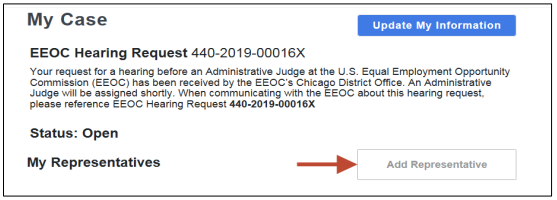 Step 2. The Representative Information page displays. Indicate if the person who represents you is an attorney by selecting either the Yes or No button.
Step 3. Enter the information for the representative.
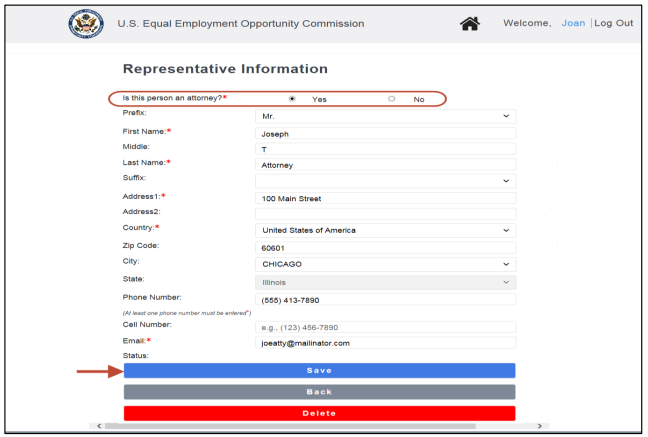
➢ Tip! When the Zip Code is entered, the city and state fields are automatically populated.
Step 4. Select the Save button. Select the Back button to return to the My Case page.Step 5. The representative you identified will be sent an email to confirm that he/she will be representing you.
Step 6. If the EEOC does not receive confirmation from the representative after 10 days, you may confirm by uploading a Notice of Representative signed by your representative, or you may designate a different representative.
3.2 | UPDATE/DELETE A REPRESENTATIVE
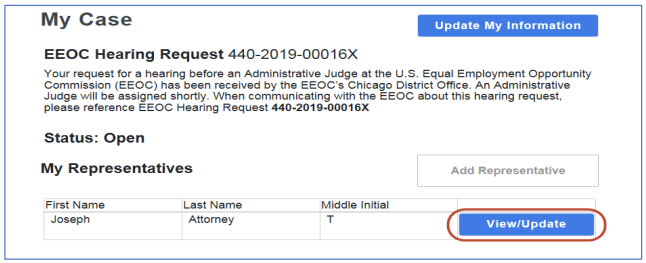 Step 2. When the Representative Information page displays, make any necessary changes and select the Save button.
Step 3. If you need to delete a representative, select the Delete button. When the confirmation prompt displays, select the Yes button to delete.
Step 4. Select the Back button to return to the My Case page.
Chapter 4
Submit and Receive Documents
4.0 | CHAPTER 4 INTRO
4.1 | SUBMIT DOCUMENTS TO THE EEOC/AGENCY
When you upload documents in the Portal, they will be available for you, the EEOC and the agency to read. Once you have uploaded a document, you can open or save it. An uploaded document cannot be deleted.
A variety of file types may be uploaded, including:
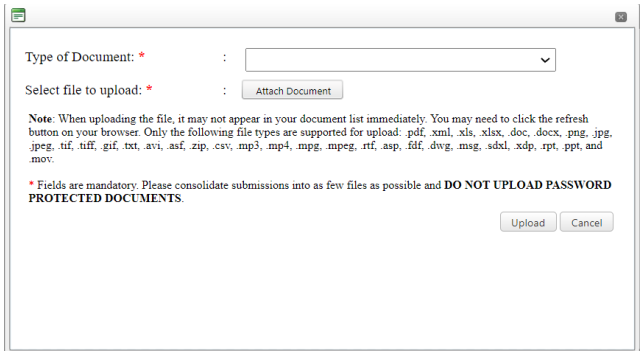
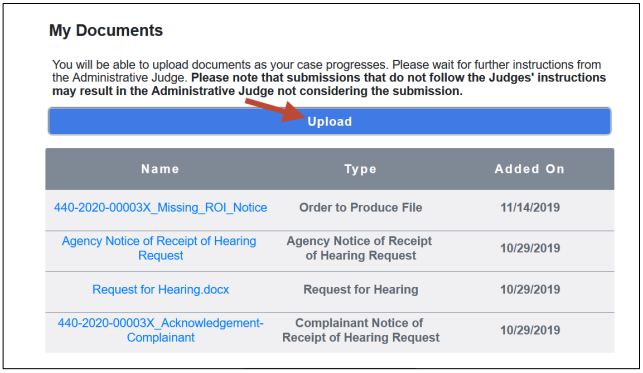 Step 2. The Upload Document window displays.
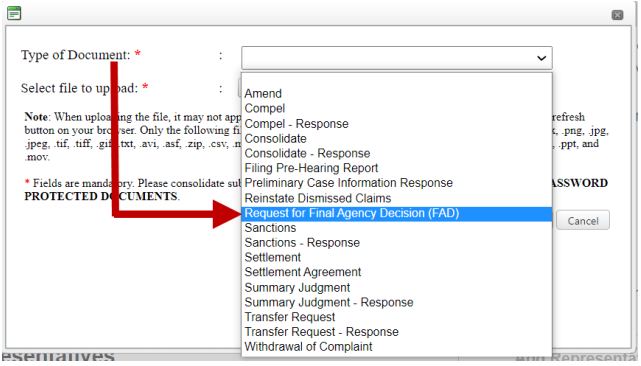
 Step 3. Select the Type of Document from the drop-down list.
 Step 4. Select the file to upload by selecting the Attach Document button.
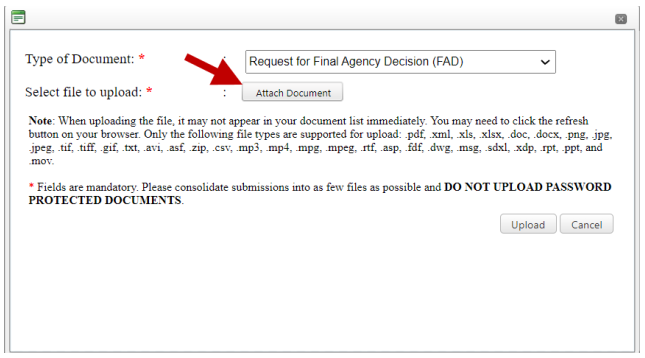 Navigate to the file in the Choose File to Upload window and select OK.
Step 5. Select the Upload button in the Upload Document window.
Navigate to the file in the Choose File to Upload window and select OK.
Step 5. Select the Upload button in the Upload Document window.
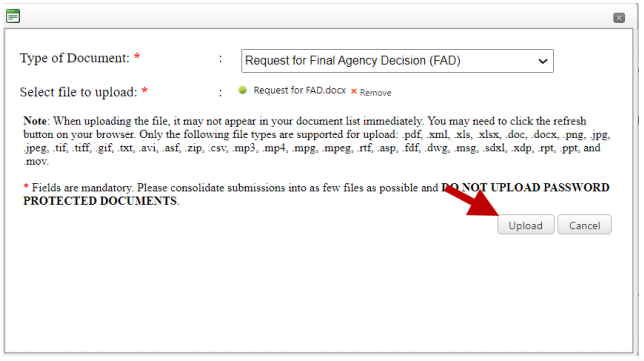 Step 6. The document you uploaded is displayed at the top of the My Documents list (documents are listed by Added On date, in reverse chronological order, with the most recently uploaded documents listed first).
Step 7. If you do not see the document you uploaded in the My Documents list, select the refresh button on your browser.
4.2 | VIEW/DOWNLOAD DOCUMENTS
The information displayed for each document in the My Documents list is shown in Table 1 below.
| Column Name | Description |
|---|---|
| Name | The name of the document. Identical to the document’s file name minus the file extension. |
| Type | The document type (e.g. “Complainant Appeal Brief”). |
| Added On | The date the document was uploaded. |
Step 2. A pop-up message displays indicating that the download may take a while. Select the OK button to continue with the document download (if you do not want to continue with the download, select the Cancel button).
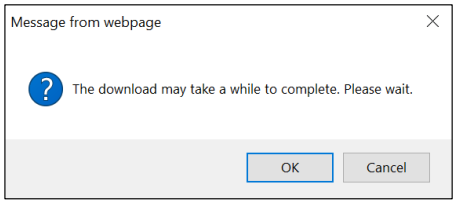 Note: The message may display differently depending on the browser you’re using.
Step 3. The document will be downloaded. Choose to open it, or save the file to your computer or a shared drive, as shown below:
Note: The message may display differently depending on the browser you’re using.
Step 3. The document will be downloaded. Choose to open it, or save the file to your computer or a shared drive, as shown below:
 If you choose to save it, you will be asked to select a location on your computer where you want it saved. (You may also rename the document if you choose to save it.)
Be sure to save all documents related to your hearing, or appeal, including Email correspondence.
It should help you as you contemplate/file your charge of discrimination.
Moreover, you might need to reference it during your pursuit of justice.
For instance, you might need to use this handbook in order to protect yourself from organizations/judges/lawyers who break the law (see this example of a Florida judge who outright committed perjury).
Nevertheless – and as always – please get the justice you deserve.
Sincerely,
www.TextBookDiscrimination.com


