
EEOC Public Portal User's Guide
Volume 8: Manage Case Information
Chapter 4
SUBMIT AND RECEIVE DOCUMENTS
4.0 | CHAPTER 4 INTRO
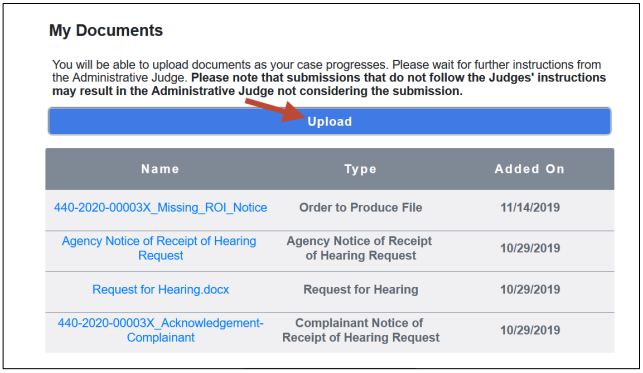
4.1 | SUBMIT DOCUMENTS TO THE EEOC/AGENCY
When you upload documents in the Portal, they will be available for you, the EEOC and the agency to read. Once you have uploaded a document, you can open or save it. An uploaded document cannot be deleted.
A variety of file types may be uploaded, including:
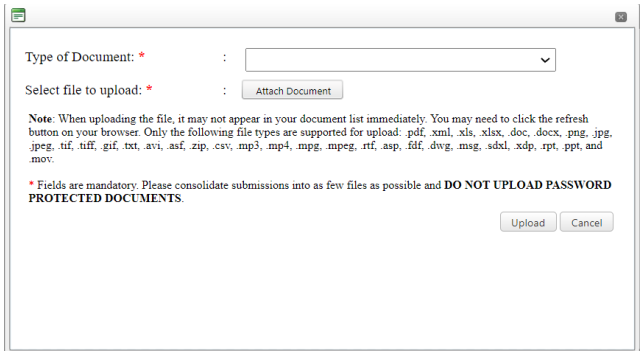
 Step 2. The Upload Document window displays.
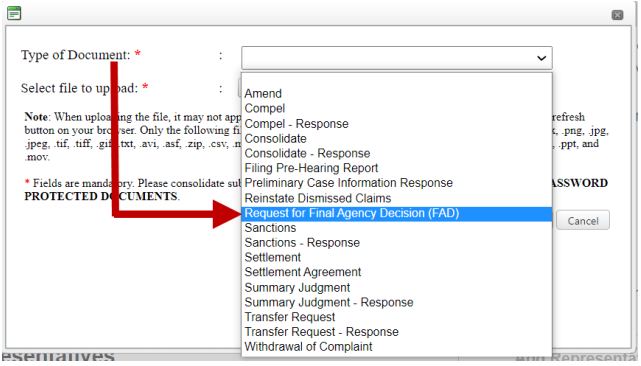
 Step 3. Select the Type of Document from the drop-down list.
 Step 4. Select the file to upload by selecting the Attach Document button.
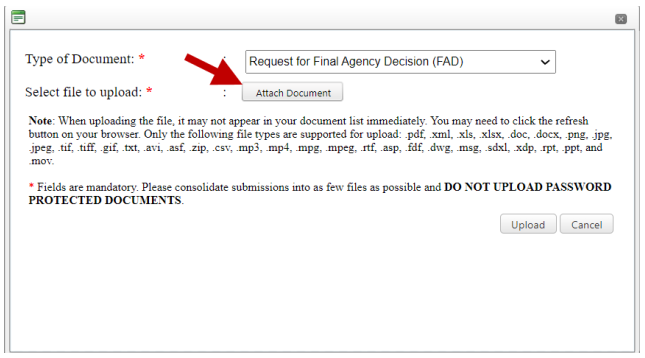 Navigate to the file in the Choose File to Upload window and select OK.
Step 5. Select the Upload button in the Upload Document window.
Navigate to the file in the Choose File to Upload window and select OK.
Step 5. Select the Upload button in the Upload Document window.
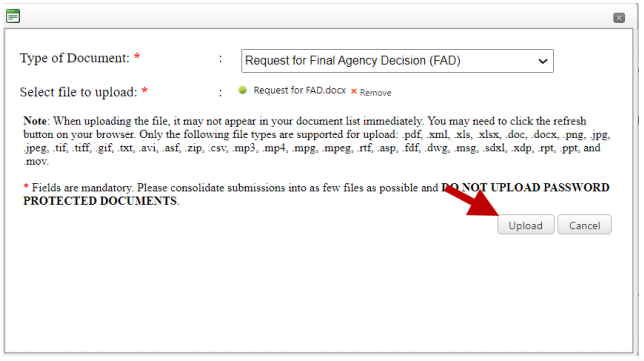 Step 6. The document you uploaded is displayed at the top of the My Documents list (documents are listed by Added On date, in reverse chronological order, with the most recently uploaded documents listed first).
Step 7. If you do not see the document you uploaded in the My Documents list, select the refresh button on your browser.
4.2 | VIEW/DOWNLOAD DOCUMENTS
The information displayed for each document in the My Documents list is shown in Table 1 below.
| Column Name | Description |
|---|---|
| Name | The name of the document. Identical to the document’s file name minus the file extension. |
| Type | The document type (e.g. “Complainant Appeal Brief”). |
| Added On | The date the document was uploaded. |
Step 2. A pop-up message displays indicating that the download may take a while. Select the OK button to continue with the document download (if you do not want to continue with the download, select the Cancel button).
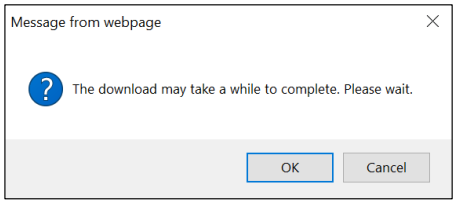 Note: The message may display differently depending on the browser you’re using.
Step 3. The document will be downloaded. Choose to open it, or save the file to your computer or a shared drive, as shown below:
Note: The message may display differently depending on the browser you’re using.
Step 3. The document will be downloaded. Choose to open it, or save the file to your computer or a shared drive, as shown below:
 If you choose to save it, you will be asked to select a location on your computer where you want it saved. (You may also rename the document if you choose to save it.)
Be sure to save all documents related to your hearing, or appeal, including Email correspondence.
You might need to reference it during your pursuit of justice.
For instance, you might need to examine one of these passages in order to protect yourself from organizations that have discriminated against you. Please stay vigilant, though, because you might encounter severe pitfalls along the way (see this example of a Florida judge who outright committed perjury).
Nevertheless – and as always – please get the justice you deserve.
Sincerely,
www.TextBookDiscrimination.com


