HomeAboutContact | ...loading...
Buy™ | Sell™ | Shop™ |
iconWebsite
TBD Marketplace™
iconWebsite
TBD Marketplace™Shop™

EEOC Public Portal User's Guide
Volume 8: Manage Charge Information
Chapter 1
DISPLAYING INFORMATION ABOUT YOUR CASE

1.0 | CHAPTER 1 INTRO

After you have submitted an inquiry, or filed a charge, with the EEOC, you can select My Cases on the EEOC Public Portal to view the case information and associated documents. If you have more than one case filed with the EEOC, the My Cases Listing will display (Figure 1). This screen displays a list of all the cases (inquiries, charges) you have filed with the EEOC and their status. If you have only one inquiry/charge you will be taken directly to the My Charge page when you select My Cases on the Portal’s home page.

The My Cases Listing is sorted by submission date, with newest cases listed first. If you have a large number of cases, use the page navigation buttons (<< < > >>) to move between pages. Select the case you wish to view by selecting the Case Number; this will display the My Charge page.
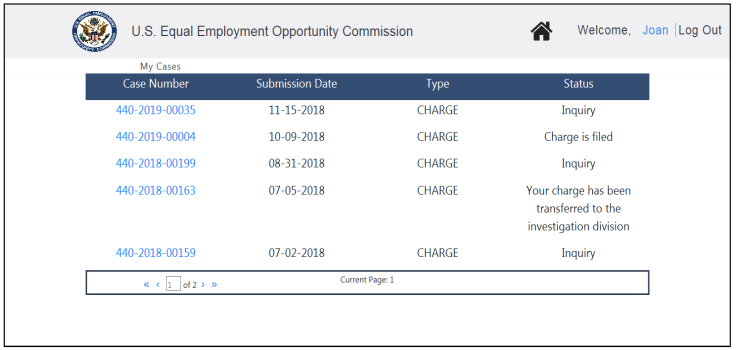
Figure 1 – My Cases Listing (Inquiries/Charges)
SnapshotInstructions
The case status column displays as follows:
• For online inquiries, the status will be Inquiry.

• For charges, the status displayed is consistent with the status shown in the Portal’s online charge status page.
1.1 | MY CHARGE PAGE

If you are working with the EEOC on an inquiry, the appearance of the My Charge page will vary. You will see a screen prompting you for the next action (e.g. enter supplemental information, schedule an interview, review the Charge of Discrimination, choose whether to file a charge).

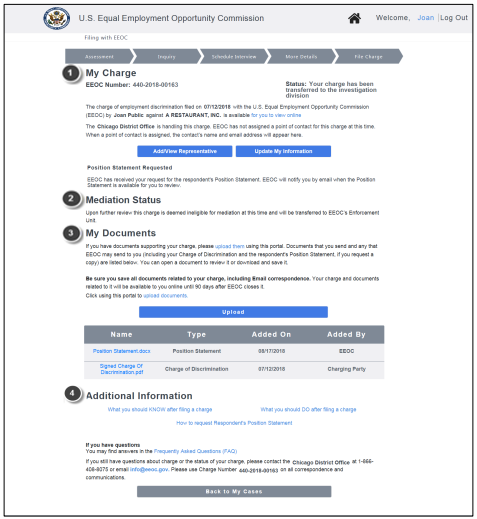
If you have filed a charge that is being processed by the EEOC, the My Charge page will appear as shown in Figure 2 below. In general, the page is divided into three sections: My Charge, My Documents, and Additional Information. As your case progresses notifications when an action is needed or has occurred will display below the My Charge section (e.g. “Position Statement is Available”, “Position Statement Provided”, “Your Charge is Eligible for Mediation”). Descriptions of the numbered items follow Figure 2. (NOTE: Numbers are not actually seen on the screen.)
Figure 2 – My Charge Page
SnapshotInstructions
My Charge. This section displays general information about your charge and allows you to update your contact information and/or add (legal or non-legal) representative information (only one representative may be entered). (Chapter 2 & Chapter 3)

Notifications: This section displays notifications from the EEOC when an action is required or has occurred (e.g. invitation to mediate the charge, Respondent has uploaded their Position Statement, etc.) The example above shows that the EEOC has determined the charge is no longer eligible for mediation. For more details see EEOC Public Portal User’s Guide Vol 4 – Post Charge Tasks.

My Documents. This section displays the documents associated with your charge that you have sent or that the EEOC has sent to you (e.g. Charge of Discrimination, Respondent’s Position Statement). You may view, download, and/or submit documents here. (Chapter 4)

Additional Information. This section provides you with additional information related to the EEOC charge process, via three links:
• What you should KNOW after filing a charge

• What you should DO after filing a charge

• How to request Respondent’s position statement
Additionally, a link is provided to FAQs, where you can search for answers to questions you may have, and the EEOC office contact information is displayed.
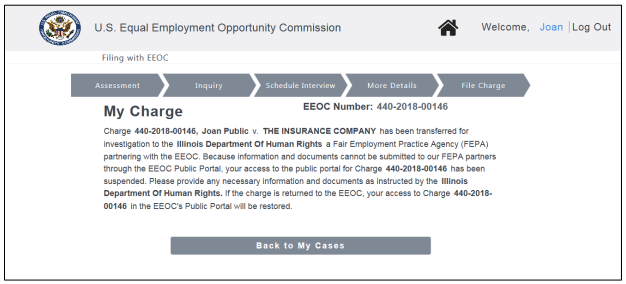
If your charge is dual-filed with a State or Local Fair Employment Practices Agency (FEPA) and has been transferred to that FEPA, you will not be able to access the charge information nor submit documents for the charge through the Public Portal; if the charge is returned to the EEOC, your access to that charge in the Public Portal will be restored. Instead a message will display (Figure 3).
Figure 3 – My Charge Page (Charge Dual-Filed with a FEPA)
SnapshotInstructions
Congratulations! You're now booked up on Chapter 1 from 'Volume 8: Manage Charge Information' of the EEOC's Public Portal User's Guide!
You might need to reference it during your pursuit of justice.

For instance, you might need to examine one of these passages in order to protect yourself from organizations that have discriminated against you. Please stay vigilant, though, because you might encounter severe pitfalls along the way (see this example of a Florida judge who outright committed perjury).

Nevertheless – and as always – please get the justice you deserve.

Sincerely,


www.TextBookDiscrimination.com
Buy™ | Sell™ | Shop™ |
iconWebsite
TBD Marketplace™
iconWebsite
TBD Marketplace™Shop™
logoAdobe Download
logoTable Portal
logoSurvey Survey
logoInfo FCHR 101: How it Works
iconMusic Audio: Drop the Steal
YouTubeVideo Video: A Judge's Perjury
logoCases A Judge's Perjury
logoHTML How-To: Disqualification
iconWarning Warning: FCHR Bribery
iconWarning Warning: FCHR Corruption
iconWarning Warning: FCHR Discrimination
iconWarning Warning: FCHR Obstructions
Pages That You
Might Also Like
All-in-One
EEOC Regulations
Reading List: Employment Discrimination
How-To: Post-Termination Retaliation How-To: Substantial Weight Review Opposition vs Participation
Handbook: Right-to-Sue
TBD.C: Charges TBD.D: Determinations
Handbook: FCHR PFR
Shop | TBD Marketplace™
Buy | TBD Marketplace™
Sell | TBD Marketplace™
add a comment
IconQuiz IconLike
iconFullScreenBgnIticonFullScreenEndIt
Icon-Email-WBIcon-Email-WG Icon-Youtube-WBIcon-Youtube-WG Icon-Share-WBIcon-Share-WG