
EEOC Public Portal User's Guide
Volume 6: Hearings with the EEOC
Chapter 0
Introduction to the EEOC Public Portal
0.0 | INTRODUCTION TO THE EEOC PUBLIC PORTAL
0.1 | ABOUT THE USER’S GUIDE
The following EEOC Public Portal User’s Guide documents are available; the highlighted Document Name is the one you’re reading right now:
❖ Vol 2 – Submit an Online Inquiry to the EEOC
❖ Vol 3 – Post-Inquiry Tasks (learn about scheduling an interview with the EEOC, entering Supplemental Information, filing a Charge of Discrimination)
❖ Vol 4 – Post-Charge Tasks (learn how to check the status of your case, respond to an Invitation to Mediate, request/respond to a Respondent’s Position Statement)
❖ Vol 5 – Charge Closure (learn what happens when your charge has been closed)
❖ Vol 6 – Hearings with the EEOC
❖ Vol 7 – Appealing Federal Agency Decisions to the EEOC
❖ Vol 8 – Manage Case/Charge Information (learn how to display information about your case, enter/update your personal information, add representatives, and submit/receive documents associated with your case)
Chapter 1
Request a Hearing with EEOC
1.0 | REQUEST A HEARING WITH EEOC
To request a hearing on your complaint through the EEOC Public Portal, perform the following steps:
Step 2. When asked to identify the Type of Employer you believe discriminated against you, select ‘Federal Government agency...’ and select the Next button.
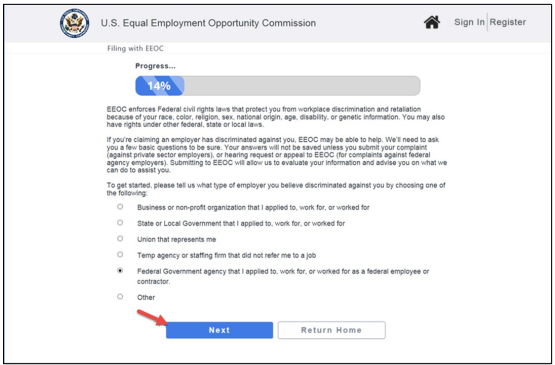 Step 3. An informational page displays with links to help you learn more about EEOC and the hearing and appeal processes. When you are ready to continue, select the Next button.
Step 4. The What would you like to do? page displays. Select Request a Hearing about my formal EEO complaint and select the Next button.
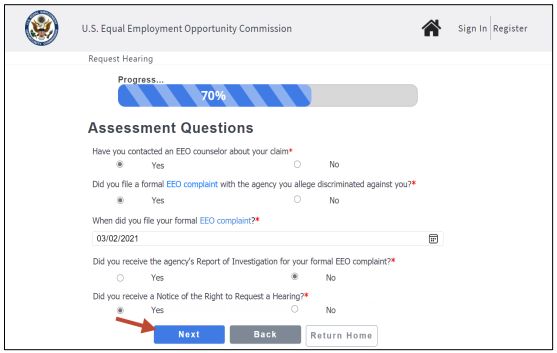
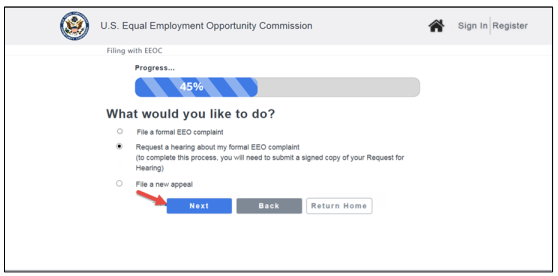 Step 5. You will now be asked some questions to determine if the EEOC can help you. Select the appropriate response or fill in the requested information for each question. When you have completed the questions, select the Next button.
➢ Tip! You may be asked more or fewer questions depending on your answers. The illustration below shows one possible outcome.
 Step 6. To submit a Hearing request, you must have a user account. If you have not used the EEOC Public Portal before, select the Sign-Up Now button to create your user account (refer to EEOC Public Portal User’s Guide Vol 1 – Getting Started for details).
➢ Tip! If you already registered with the EEOC, select the Returning Users button and login.
Step 7. Your personal information is displayed, which will be submitted with the online inquiry. This screen is view-only. Select the Continue button to proceed.➢ Tip! If you need to modify this information, select the link at the top of the page to go to your User Account Information. When you have finished and submitted your changes, you will be returned to inquiry submission process.
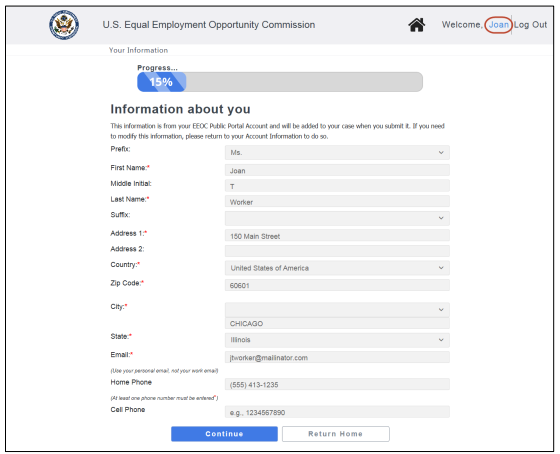 Step 8. Next, you will be asked if you want to enter information about your legal representative (this is optional, but if you are being represented by an attorney or another individual in the EEO process, you should identify your representative here). Select Yes or No and select the Next button to continue.
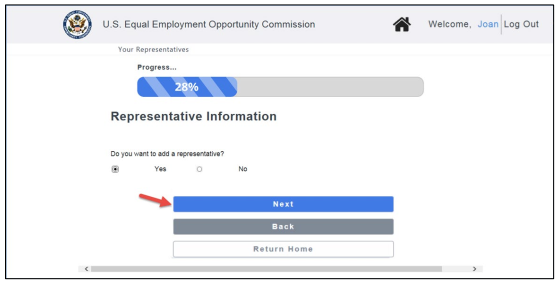
➢ Tip! If you choose not to enter a legal representative now, you will be able to enter one later, on the My Case Page.
Step 9. If you selected Yes, a form will display for you to fill in the representative information. When you are finished, select the Next button to continue.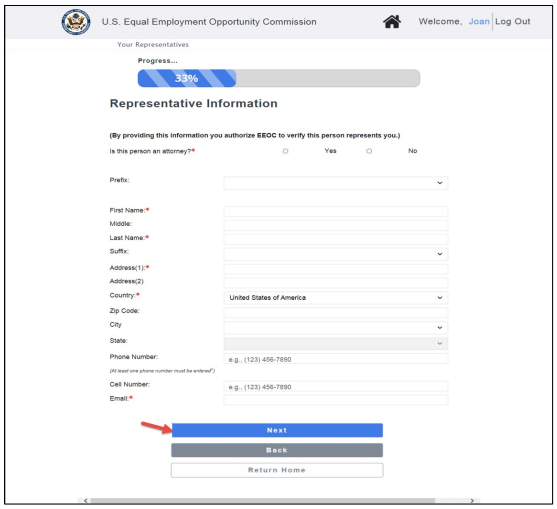
➢ Tip! EEOC verifies that the representative represents you. EEOC expects a reply from the representative within 10 days of sending a verification email; if they haven’t received a reply after 10 days, then you will receive an email notifying you that EEOC has been unable to verify the representative.
Step 10. A page displays showing the representative(s) you have entered. Select the Add Another Representative button to add another representative. Select the View/Update Delete button to make changes. When you are finished, select the Next button to continue.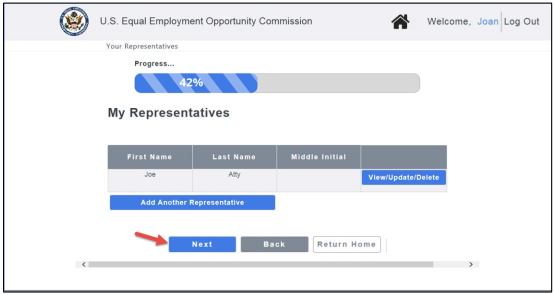 Step 11. Next you must upload your Notice of Right to Request Hearing document, which you should have received from the agency named in your complaint. Select the Upload button.
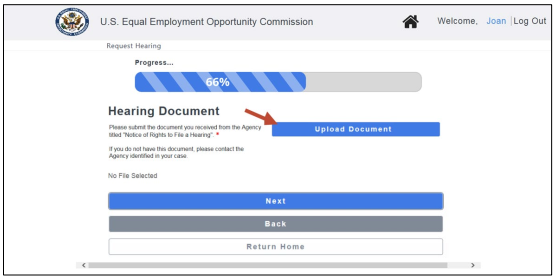 When the pop-up window displays, select the document and ‘Request for Hearing’ as the document type, and select the Upload button on the window. The Hearing Document page will then display the file that you uploaded. You must upload the hearing request document before you can submit the hearing request.
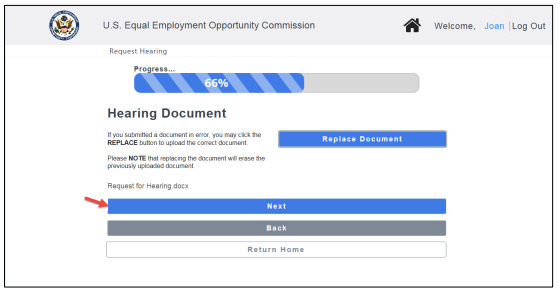
Step 12. After uploading the document, the screen will appear as shown below. If you made a mistake and uploaded the wrong document, you can replace it with the correct document by selecting the Replace Document button. Otherwise select the Next button to continue.
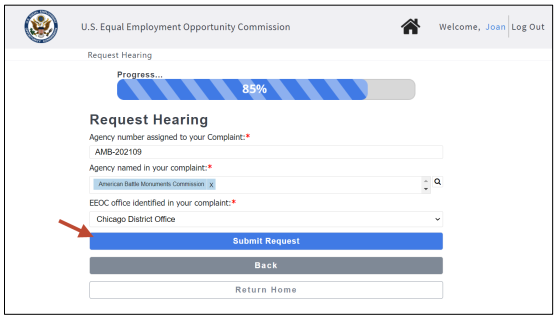
 Step 13. Finally, you will be asked to enter information to identify your complaint. You must enter the Agency number, Agency name, and the EEOC office. When you are finished, select the Submit Request button.
➢ Tip! Select the magnifying glass to display a list of agencies to choose from. You may remove a selection by selecting the ‘x’ next to the agency name.
 Step 14. When the request is successfully submitted, you and the Agency will receive an email titled a “Notice of Receipt of Hearing Request”. The Notice may also be downloaded from the My Cases page for the hearing request.
In the Portal, a confirmation of your hearing request displays with your hearing number as shown below. (Note: the hearing number displayed is for a fictional hearing.)
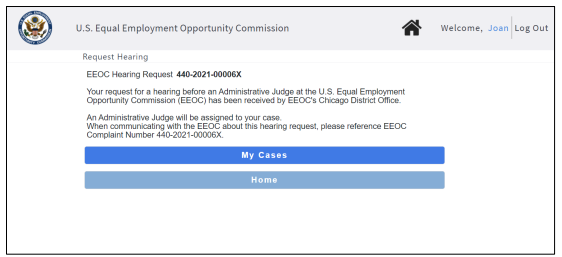 Be sure to write down the hearing number so that you can reference it when communicating with the EEOC.
Step 15. Select the My Cases button to display the page for your case, or the Home button to return to the Home page.
Chapter 2
Uploading Hearing Documents
2.0 | UPLOADING HEARING DOCUMENTS
For Details refer to EEOC Public Portal User’s Guide Vol 8 – Managing Case Information.
Chapter 3
Viewing and Managing Information About Your Case
3.0 | VIEWING AND MANAGING INFORMATION ABOUT YOUR CASE
For Details refer to EEOC Public Portal User’s Guide Vol 8 – Managing Case and Charge Information.
Chapter 4
Respond to an Invitation to ADR
4.0 | CHAPTER 4 INTRO
2. Central Intelligence Agency.
3. National Reconnaissance Office.
4. Office of the Director of National Intelligence.
5. National Security Agency.
You will have 30 days to respond to the invitation. If you do not respond within 30 days, you will receive a weekly email reminder and if you do not respond after the reminder, EEOC may decide to move your case forward without mediation by assigning it to an Administrative Judge or Pending AJ assignment if your case is yet to be assigned to an Administrative Judge.
4.1 | ACCEPTING OR REJECTING AN INVICATION TO ADR
Step 2. On the My Cases page, select the EEOC number for your hearing request.
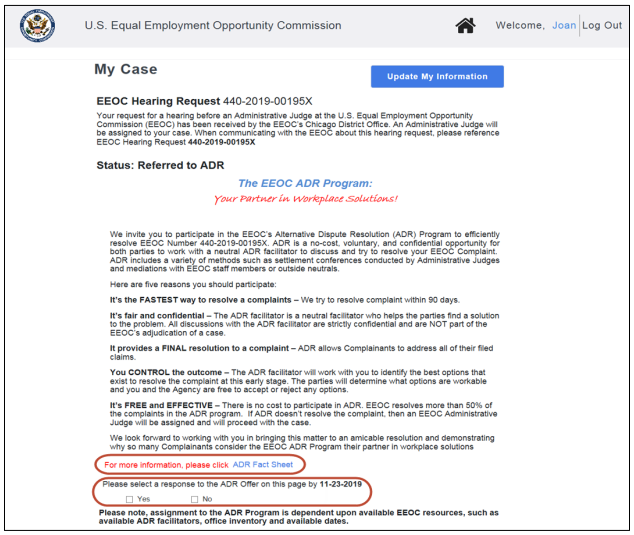
Step 3. On the My Case page, scroll down to where “Invitation to ADR” is displayed (shown in Figure 1 above).
Step 4. Select a response, either ‘Yes’ or ‘No’.
➢ Tip! Select the link at the bottom of the invitation to view the ADR Fact Sheet.
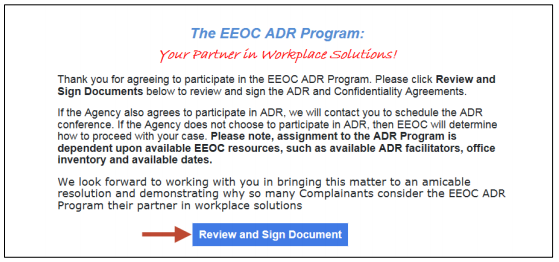
Step 5. If you selected ‘Yes’, this message displays in the EEOC Public Portal:Thank you for agreeing to participate in the EEOC ADR Program. Please click Review and Sign Documents below to review and sign the ADR and Confidentiality Agreements.You must review and sign the ADR and Confidentiality agreements if you wish to proceed with the ADR program (the full text of the agreements can be found 0). Select the Review & Sign Documents button.
If the Agency also agrees to participate in ADR, we will contact you to schedule the ADR conference. If the Agency does not choose to participate in ADR, the EEOC will determine how to proceed with your case. Please note, assignment to the ADR Program is dependent upon available EEOC resources, such as available ADR facilitators, office inventory and available dates.
We look forward to working with you in bringing this matter to amicable resolution and demonstrating why so many Complainants consider the EEOC ADR Program their partner in workplace solutions.
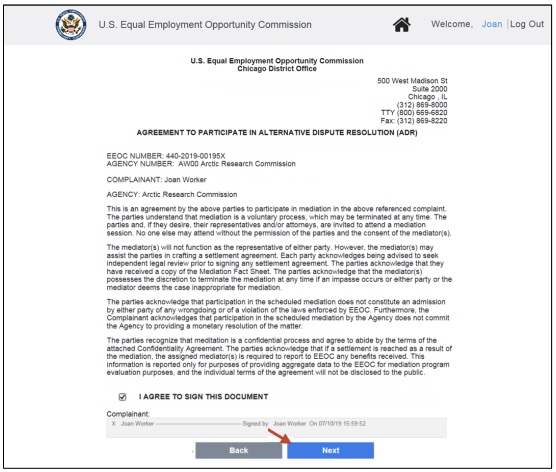
 First the Agreement to Participate in ADR displays. Select the box to “check” it and digitally sign the agreement (the signature will be automatically populated), then select the Next button. If you want to go back to the My Cases page, select the Back button
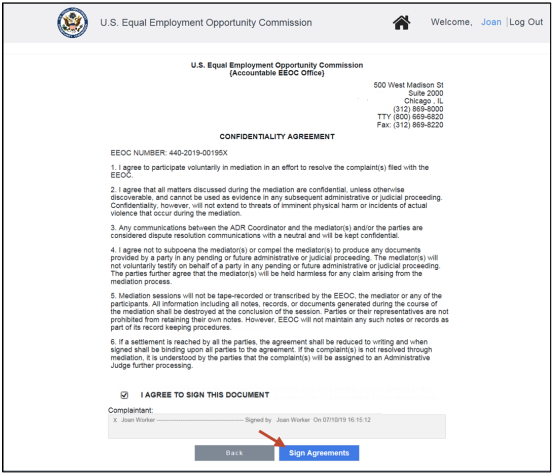
 Then the Confidentiality Agreement displays. Select the box to “check” it and digitally sign the agreeement (the signature will be automatically populated), then select the Sign Agreements button. If you want to go back to the Agreement to Participate in ADR, select the Back button.
 You will now be returned to the My Case page. The signed agreements will be automatically uploaded and will appear in the My Documents list. This message displays in the EEOC Public Portal:
Thank you for agreeing to participate in the EEOC ADR program. Please note, assignment to the ADR Program is dependent upon available EEOC resources, such as available ADR facilitators, office inventory and available dates.If the Agency also agrees to ADR and an ROI has been submitted, then the EEOC may move the case forward to ADR scheduling and you will be contacted to schedule ADR.
Once you have chosen ‘Yes’ and signed the documents, the selection cannot be undone.
Step 6. If you selected ‘No’, select the Save button. This message displays in the EEOC Public Portal:
Thank you for your response. EEOC’s staff will determine how to proceed with the processing of your complaint. We look forward to working with you in bringing this matter to an amicable resolution. If you had previously selected No, you may still select Yes should you decide to change your mind and proceed with the ADR program.The radio buttons will remain active in case you change your mind and decide to accept the ADR invitation.
Please note, assignment to the ADR Program is dependent upon available EEOC resources, such as available ADR facilitators, office inventory and available dates.
4.2 | ADR OUTCOMES
4.2.1 ADR Scheduled
After you accept the invitation to ADR, if the agency has also agreed to participate in ADR and the EEOC decides to move the case forward to ADR scheduling, this message is displayed on the screen:Both parties have agreed to participate in ADR. EEOC will contact you when the ADR session is scheduled and will provide you with more information. No further action is required from you at this time.When the ADR session has been scheduled, this message will be displayed on the screen:
An ADR session has been scheduled. Please be sure to make yourself available for this meeting.
4.2.2 ADR Held
When ADR has been held, this message will be displayed on the screen:Both parties participated in ADR.If ADR was successful, this message will be displayed on the screen:
The ADR session resulted in a resolution of the complaint. After the executed settlement is uploaded, this matter will be closed.If a Closure Document is issued, this message will be displayed on the screen:
A Closure Document was issued in the case. To view the document, please access the document section of the Portal.When the complaint is closed, the following messages will display on the screen:
The case is now closed. Please review the Closure Document for Appeal Rights, if applicable.If ADR was unsuccessful, this message will be displayed on the screen:
The ADR session did not result in a resolution of the complaint. The parties will receive further instruction on the processing of the complaint from EEOC.Additional status messages will be displayed as the complaint is processed (refer to Chapter 5).
4.2.3 Not Eligible for ADR
If the EEOC reviews the ROI and determines your case is not eligible for ADR, or you and the Agency declines the ADR invitation, your case will be Pending AJ assignment and this message will be displayed on the screen:Upon further review this complaint is not considered for ADR and will be assigned to an Administrative Judge to continue processing. However, ADR may be considered after assignment to an Administrative Judge. Your patience is appreciated.Additional status messages will be displayed as the complaint is processed (refer to Chapter 5).
Chapter 5
Hearing Conducted by the EEOC
5.0 | HEARING CONDUCTED BY THE EEOC
Once the AJ has made a decision, the agency will issue a final order notifying you if they agree with the AJ’s decision and if they will grant any relief ordered. You have a right to appeal the AJ’s decision and may file an appeal via the EEOC Public Portal. For details on how to file an appeal refer to EEOC Public Portal User’s Guide Vol 7 – Appeals to the EEOC.
You may track the progress of your hearing via the EEOC Public Portal. Select My Cases on the EEOC Public Portal Home Page, and then the EEOC Number in the case list. On the My Case page, the current status of your hearing request and a detailed description displays. The status will be one of the following:
• Assigned to AJ
• Hearing Scheduled
• Hearing Held
• Closure Document Issued
• Closed
For details on viewing case information and uploading/downloading documents refer to EEOC Public Portal User’s Guide Vol 8 – Managing Case Information.
Appendix A
ADR Documents
X-A | APPENDIX A: ADR DOCUMENTS
The EEOC ADR Program:
Your Partner in Workplace Solutions!
We invite you to participate in the EEOC’s Alternative Dispute Resolution (ADR) Program to efficiently resolve EEOC Complaint {EEOC Number}. ADR is a no-cost, voluntary, and confidential opportunity for both parties to work with a neutral ADR facilitator to discuss and try to resolve your EEOC Complaint. ADR includes a variety of methods such as settlement conferences conducted by Administrative Judges and mediations with EEOC staff members or outside neutrals.Here are five reasons you should participate:
It’s fair and confidential – The ADR facilitator is a neutral facilitator who helps the parties find a solution to the problem. All discussions with the ADR facilitator are strictly confidential and are NOT part of the EEOC’s adjudication of a case.
It provides a FINAL resolution to a complaint – ADR allows Complainants to address all of their filed claims.
You CONTROL the outcome – The ADR facilitator will work with you to identify the best options that exist to resolve the complaint at this early stage. The parties will determine what options are workable and the Agency is free to accept or reject any options.
It’s FREE and EFFECTIVE – There is no cost to participate in ADR. EEOC resolves more than 50% of the complaints in the ADR program. If ADR doesn’t resolve the complaint, then an EEOC Administrative Judge will be assigned and will proceed with the case.
We look forward to working with you in bringing this matter to an amicable resolution and demonstrating why so many Complainants consider the EEOC ADR Program their partner in workplace solutions
Please select a response to the ADR Offer on this page by <30 days from receipt of the ADR invitation>.
It should help you as you contemplate/file your charge of discrimination.
For instance, you might need to use this handbook in order to protect yourself from organizations/judges/lawyers who break the law (see this example of a Florida judge who outright committed perjury).
Nevertheless – and as always – please get the justice you deserve.
Sincerely,
www.TextBookDiscrimination.com


