
EEOC Public Portal User's Guide
Volume 3: Post-Inquiry Tasks
Chapter 0
Introduction to the EEOC Public Portal
0.0 | INTRODUCTION TO THE EEOC PUBLIC PORTAL
0.1 | ABOUT THE USER’S GUIDE
The following EEOC Public Portal User’s Guide documents are available; the highlighted Document Name is the one you’re reading right now:
❖ Vol 2 – Submit an Online Inquiry to the EEOC
❖ Vol 3 – Post-Inquiry Tasks (learn about scheduling an interview with the EEOC, entering Supplemental Information, filing a Charge of Discrimination)
❖ Vol 4 – Post-Charge Tasks (learn how to check the status of your case, respond to an Invitation to Mediate, request/respond to a Respondent’s Position Statement)
❖ Vol 5 – Charge Closure (learn what happens when your charge has been closed)
❖ Vol 6 – Hearings with the EEOC
❖ Vol 7 – Appeals to the EEOC
❖ Vol 8 – Manage Case/Charge Information (learn how to display information about your case, enter/update your personal information, add representatives, and submit/receive documents associated with your case)
Chapter 1
What Happens After Submitting an Inquiry
1.0 | WHAT HAPPENS AFTER SUBMITTING AN INQUIRY
After you have met with the EEOC, if they find the complaint is covered by EEOC’s laws, you will receive a Charge of Discrimination prepared by the EEOC. A Charge of Discrimination is a formal complaint of employment discrimination filed with the EEOC; it is the legal document of record. Once you have received a charge of discrimination, you may sign it and use it to file a complaint of employment discrimination with the EEOC (refer to Chapter 4). The organization named in your complaint will then receive an official notice of the charge.
Each of these tasks (schedule an interview, enter supplemental information, sign & file a formal charge) can be performed using the EEOC Public Portal and are described in the chapters that follow.
Chapter 2
Schedule an Interview
2.0 | SCHEDULE AN INTERVIEW
b) When you select My Cases and login, the button is displayed on the bottom of the My Charge page with a prompt to enter supplemental information. (If you have more than one case submitted with the EEOC, the My Cases listing will display first; select the Case Number to access the My Charge page.)
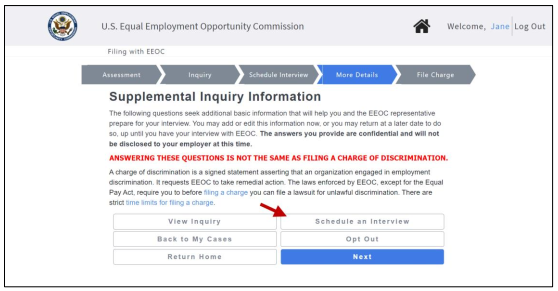
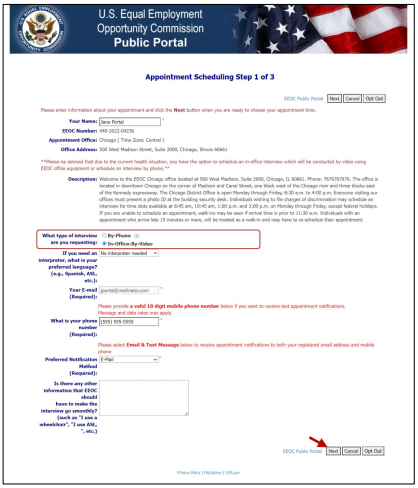
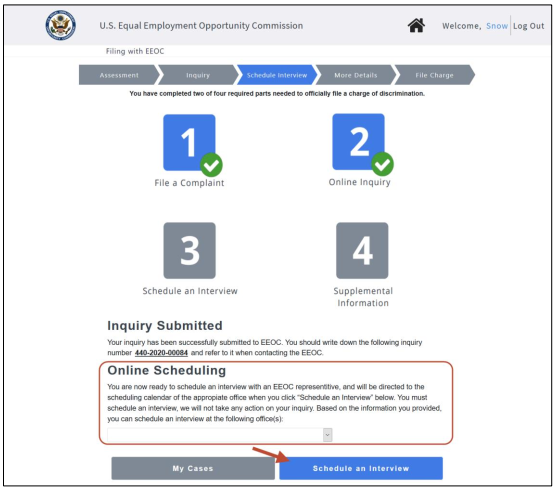 Step 2. A page with general appointment information displays. On this page you may provide information about the interview, including:
• Preferred language – If you require an interpreter, select the language that will need to be translated;
• Phone Number – Telephone number to use to contact you regarding this appointment;
• Notification Method – If you want to receive text reminders on your mobile phone, select ‘Email & Text Message’ from the Preferred Notification Method drop-down list; you will be asked to verify your phone number by entering a code sent by the system to the phone number you entered. To receive notifications by email only, select ‘Email’;
• Any additional information to help the interview go smoothly (e.g. “I use a wheelchair”, “I use ASL”, etc.)
➢ Tip! If you decide not to pursue the inquiry, you may select the Opt Out button (refer to EEOC Public Portal User’s Guide Vol 2 – Submit an Online Inquiry to EEOC for details).
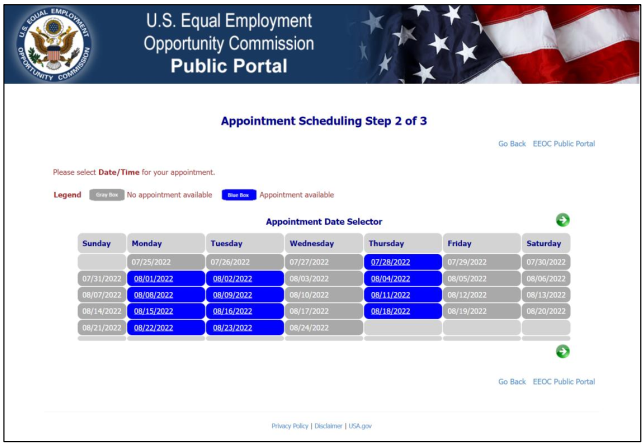
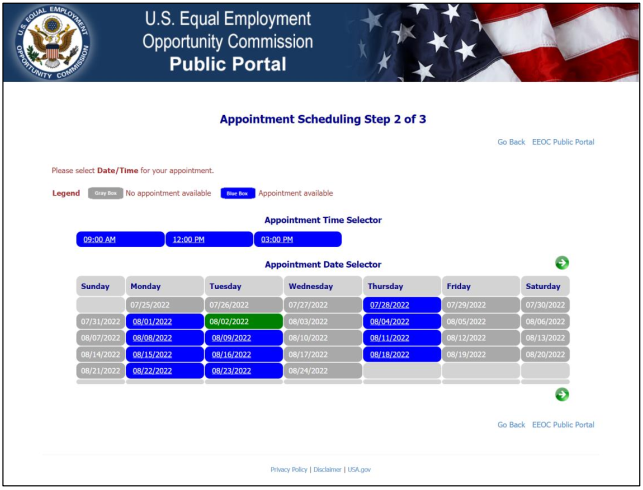
 Step 3. The Appointment Date Selector screen displays a calendar from which to select a date/time for your appointment. Use the arrow keys to navigate between months.
Select the date first:
 Then select a time from the available choices that are displayed:
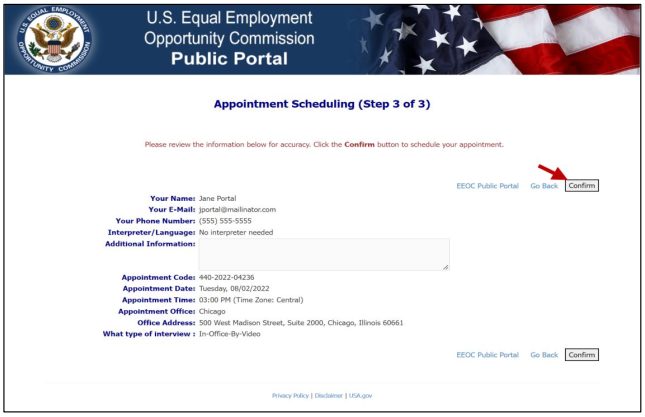
 Step 4. After both date and time are selected, a page will automatically display with your selections. Select the Confirm button to confirm the appointment. Select the Go Back link to make changes.
 Step 5. A confirmation page displays indicating that the interview is scheduled. You will be sent an email with the same information that appears on the page.
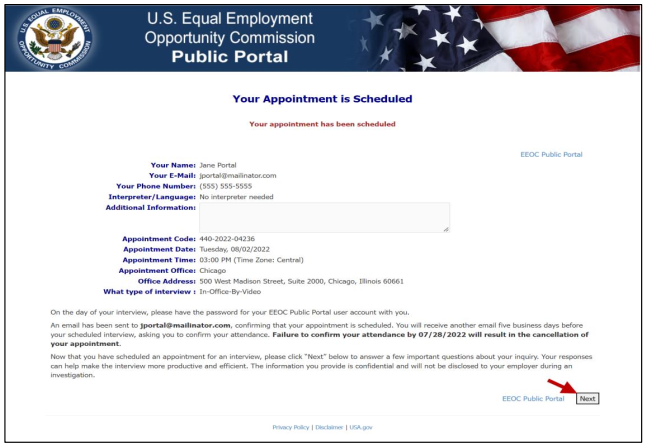 Select the Next button to continue. You will be returned to the My Charge page.
Step 6. If you need to change or cancel the interview, you can do that through the EEOC Public Portal also. Go to the My Charge page and select the Schedule an Interview button and it displays Reschedule Appointment and Cancel Appointment buttons. You will be sent an email confirming the change.
➢ Tip! If you decide not to pursue the inquiry, you may select the Opt Out button (refer to EEOC Public Portal User’s Guide Vol 2 – Submit an Online Inquiry to EEOC for details).
Step 7. You will be sent emails 20, 5, and 1 business day(s) before your appointment to remind you of the date and time of your appointment. When you receive the 5-day reminder, you must confirm that you will come to the interview on the date and time scheduled no later than 3 days prior to the appointment or it will be cancelled. You may also reschedule your appointment if you need to. The demand for EEOC appointments is very high, and they are trying to make more appointments available.If you selected ‘Email & Text Message’ as your notification method, the appointment reminders will also be sent as a text message to the mobile phone number you entered when you scheduled the interview. You may reply either by email or text message to confirm the interview appointment. You will also receive a text message if you choose to cancel your appointment, or if it is cancelled by the system should you fail to confirm your appointment in time after receiving the 5-day reminder message.
Chapter 3
Enter Supplemental Information
3.0 | ENTER SUPPLEMENTAL INFORMATION
Step 2. The My Charge page displays with a prompt to enter supplemental information (as shown in Chapter 2 above). Select the Next button.
Step 3. You will be asked a series of four fill-in-the-blank questions. Answer any or all of the questions. Select the Next button after answering a question. When you are finished entering supplemental information select the Save and Submit button.
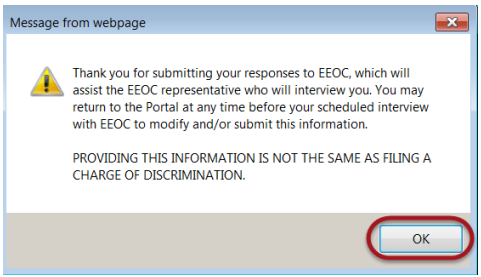
Step 4. A confirmation pop-up window displays. Select the OK button to continue.
➢ Tip! You may return as often as you wish before the interview to edit the information you provided, until the EEOC locks the inquiry.
➢ Tip! Typically, the EEOC will lock the inquiry 24-48 hours before the scheduled interview, to review the information submitted. If you login to the Public Portal when the inquiry is locked, a message displays indicating that “additional information cannot be entered at this time”. You can still view the information you submitted for the inquiry by selecting on the View Inquiry button.
Chapter 4
File the Charge of Discrimination
4.0 | FILE THE CHARGE OF DISCRIMINATION
Step 2. Open the EEOC Public Portal and select My Cases.
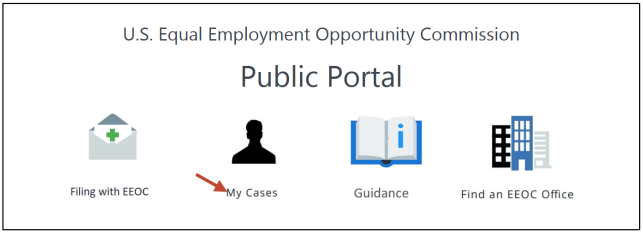 Step 3. The login page displays. Enter your user ID and password to login.
Step 4. If you have more than one case submitted with the EEOC, the My Cases listing displays first; select the Charge Number to access the My Charge page.
Step 5. The My Charge page displays with the information relating to the Charge of Discrimination that the EEOC has prepared.
➢ Tip! If you want to view the inquiry that you submitted, select the View Inquiry button.
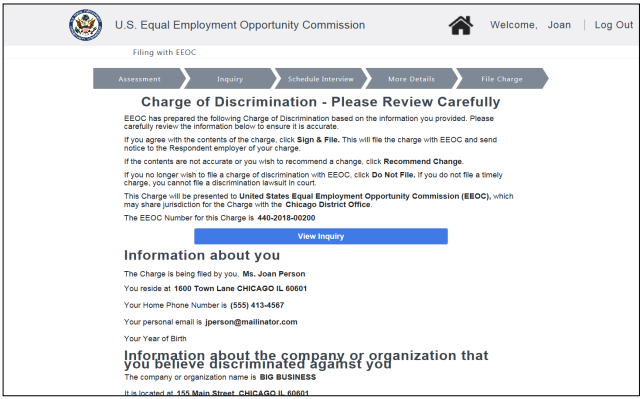 Step 6. Scroll down the page to the Recommended Changes section and select the View Charge Document at the bottom of the page to view the Charge of Discrimination.
➢ Tip! If you need to change the supplemental information for your inquiry before filing the charge, EEOC will unlock the inquiry. When the inquiry is unlocked, the Supplemental Inquiry Information page displays for you to edit the supplemental information. EEOC will modify the charge particulars as needed and resend the charge to you for review in the EEOC Public Portal.
➢ Tip! If you no longer want to file the charge, select the Do Not File button.
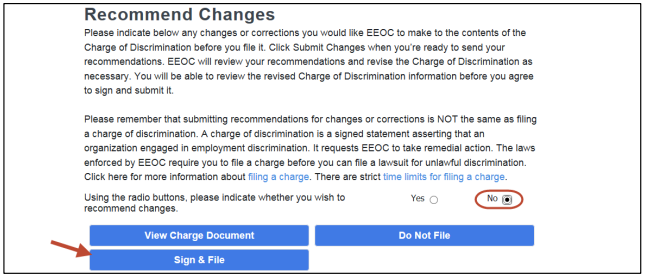
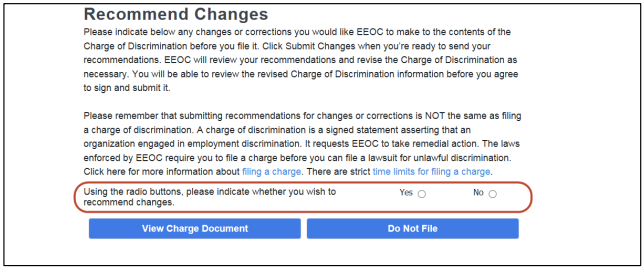 Step 8. If you want to make changes or corrections to the Charge of Discrimination select the Yes button. A space to enter changes and a Submit Changes button are displayed.
Enter your recommendations in the space provided and select the Submit Changes button. Your changes will be automatically sent to the EEOC.
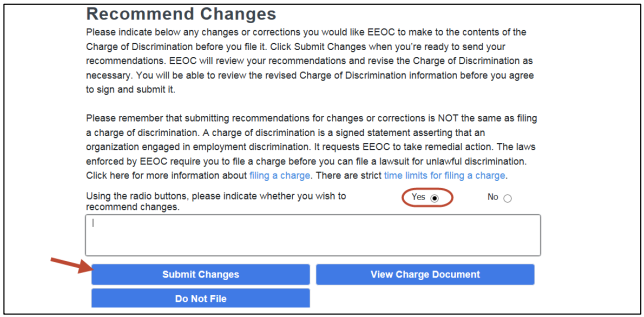 The EEOC addresses the recommended changes and sends the modified document back to you for review (Note: this step can be repeated if necessary).
Step 9. When you are ready to file your charge, select the No button. The Sign & File button is displayed. Select the Sign & File button to file a formal charge.
 Step 10. The confirmation page will appear. Check the box to confirm that the information in the charge is true and correct and electronically sign the document, select the File Charge button.
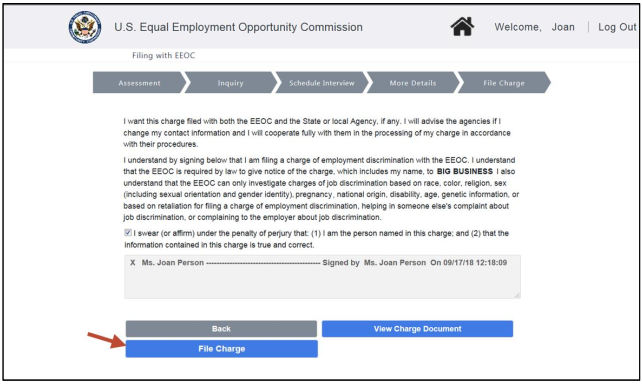
➢ Tip! If you want to view the Charge of Discrimination again before confirming, select the View Charge Document button.
➢ Tip! If you have changed your mind about filing, select the Back button, then select the Do Not File button when the previous page displays.
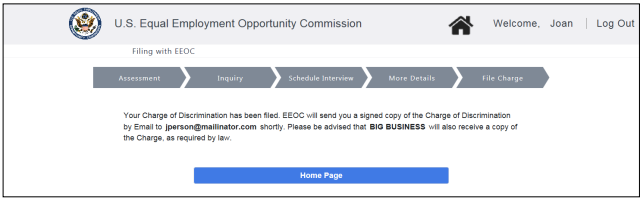
A confirmation page is displayed. Select the Home Page button to continue.
It should help you as you contemplate/file your charge of discrimination.
For instance, you might need to use this handbook in order to protect yourself from organizations/judges/lawyers who break the law (see this example of a Florida judge who outright committed perjury).
Nevertheless – and as always – please get the justice you deserve.
Sincerely,
www.TextBookDiscrimination.com


